Better Scoreboard
- By
Better Scoreboard, this addon added much better Scoreboard than Minecraft Scoreboard. Be able to Configure the scoreboard in-game, and showing some useful information in right of screen makes easily and faster to get information. Support with other addon.
Better Scoreboard v1.7.1
How it looks.
1. Scoreboard with Logo:
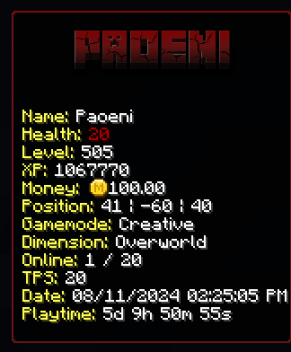
2. Scoreboard without Logo
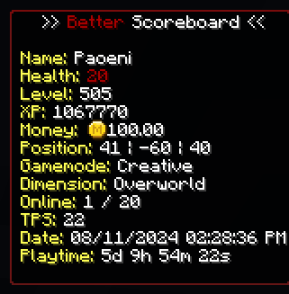
3. Scoreboard with Animation Text
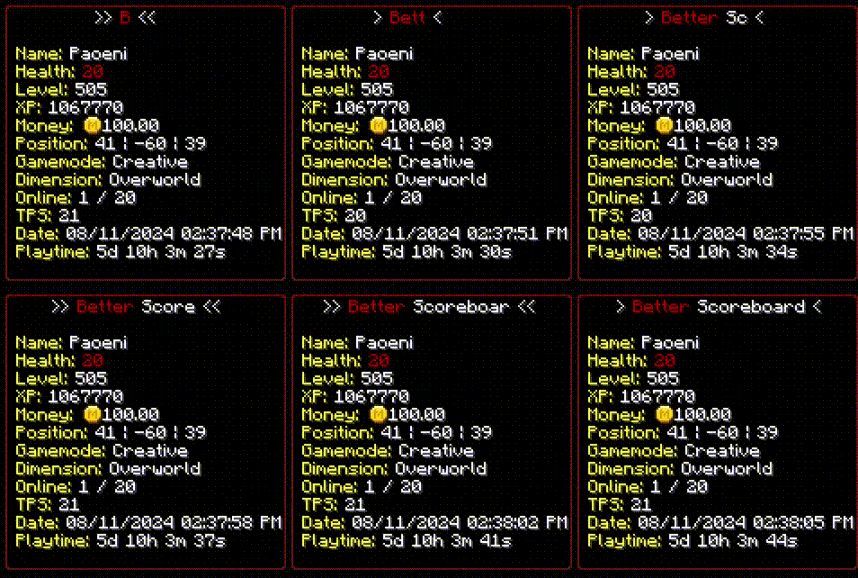
Not just with animation title, you also can set animation for the text fields.
List of Placeholder and Function that you can use for Scoreboard:
- {PlayerName} = Player Name
- {PlayerHealth} = Player Health
- {PlayerLevel} = Player Level
- {PlayerXP} = Player Total Experience
- {PosX}, {PosY}, {PosZ} = Player Position
- {Gamemode} = Player Gamemode (Creative, Survival, Adventure, Spectator)
- {Dimension} = Player Dimension (Overworld, Nether, The End)
- {TotalPlayer} = Total Online Player
- {Year} = Get Year in Real Time
- {Month} = Get Month in Real Time
- {Date} = Get Date in Real Time
- {Hours} = Get Hour in Real Time
- {Minutes} = Get Minute in Real Time
- {Seconds} = Get Second in Real Time
- {LocaleDate} = Get Formated Date
- {LocaleTime} = Get Formated Time
- {WorldDay} = Get World Day
- {TimeOfDay} = Get Time of Day in ticks
- {PlaytimeDays}: Get Player Playtime in Days
- {PlaytimeHours}: Get Player Playtime in Hours
- {PlaytimeMinutes}: Get Player Playtime in Minutes
- {PlaytimeSeconds}: Get Player Playtime in Seconds
- {PlaytimeFormat}: Get Formated Player Playtime
- {TotalPlaytimeDays}: Get Player Total Playtime in Days
- {TotalPlaytimeHours}: Get Player Total Playtime in Hours
- {TotalPlaytimeMinutes}: Get Player Total Playtime in Minutes
- {TotalPlaytimeSeconds}: Get Player Total Playtime in Seconds
- {TotalPlaytimeFormat}: Get Formated Total Player Playtime
- {DeathsCount}: Get Player Death Count
- {KillsCount}: Get Player Kill Count
- {KillsPlayersCount}: Get Player Kill Count (Player kills player)
- Scoreboard(objectiveId) = Get player score in Scoreboard Objective
- FormatMoney(Number) = Format number to Money text
- CalculateNumber(Math) = Example: CalculateNumber(500 / 50)
- RomanNumeral(Number) = Format number to Roman, Example 5 -> V
- Capitalize(String) = Format Capitalize on String, Example Capitalize(paoeni) -> Paoeni
How to do in-game Configuration:
1. Search for this item.
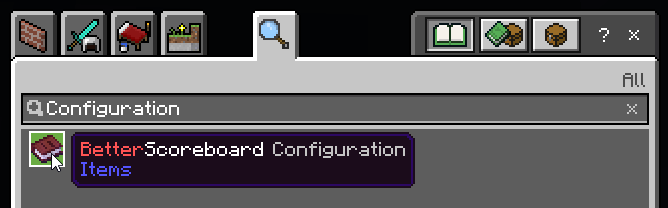
2. Hold the item and Right click / Press Interact button to open an UI.
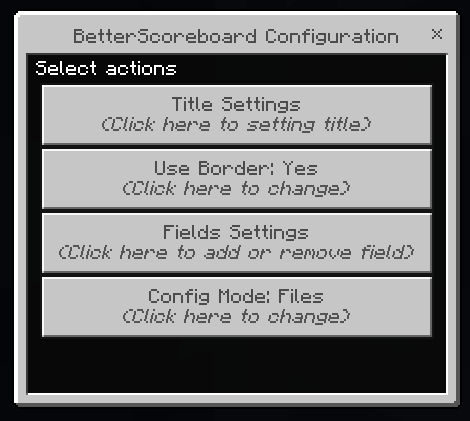
3. Change the Config Mode to In-Game
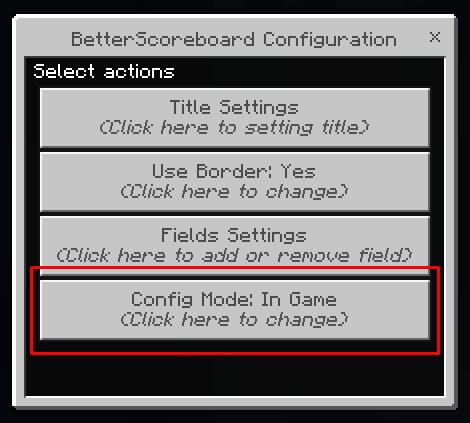
4. Do the configuration as you want!
You are permitted to:
- Use the addon packs as you see fit in-game.
- Modifying or configuring addon for personal use.
- Examine the code and works to learn more about the creation and development of addon
You are NOT permitted to:
- Change the codes and re-publish it as your own.
- Negate the accreditation of the original author.
- Paste the direct download link, negating the CurseForge page.
- Take the author's code, works, and textures just to republish them as your own.
Creator contacts:
- CurseForge Profile : https://www.curseforge.com/members/pao/projects
- Discord Community : https://paostudio.xyz/discord
- Discord : @paoeni
Better Scoreboard Team