TheBasics: WelcomeScreen
- By
A customizable Hytale welcome screen with splash image support, player buttons, admin editing, and first-join display controls.
Hytale2026-06-25_09-25-46.jpg
Hytale2026-06-25_09-18-05.png
Hytale2026-06-25_09-15-25.png
Description
🌟 TheBasics: WelcomeScreen
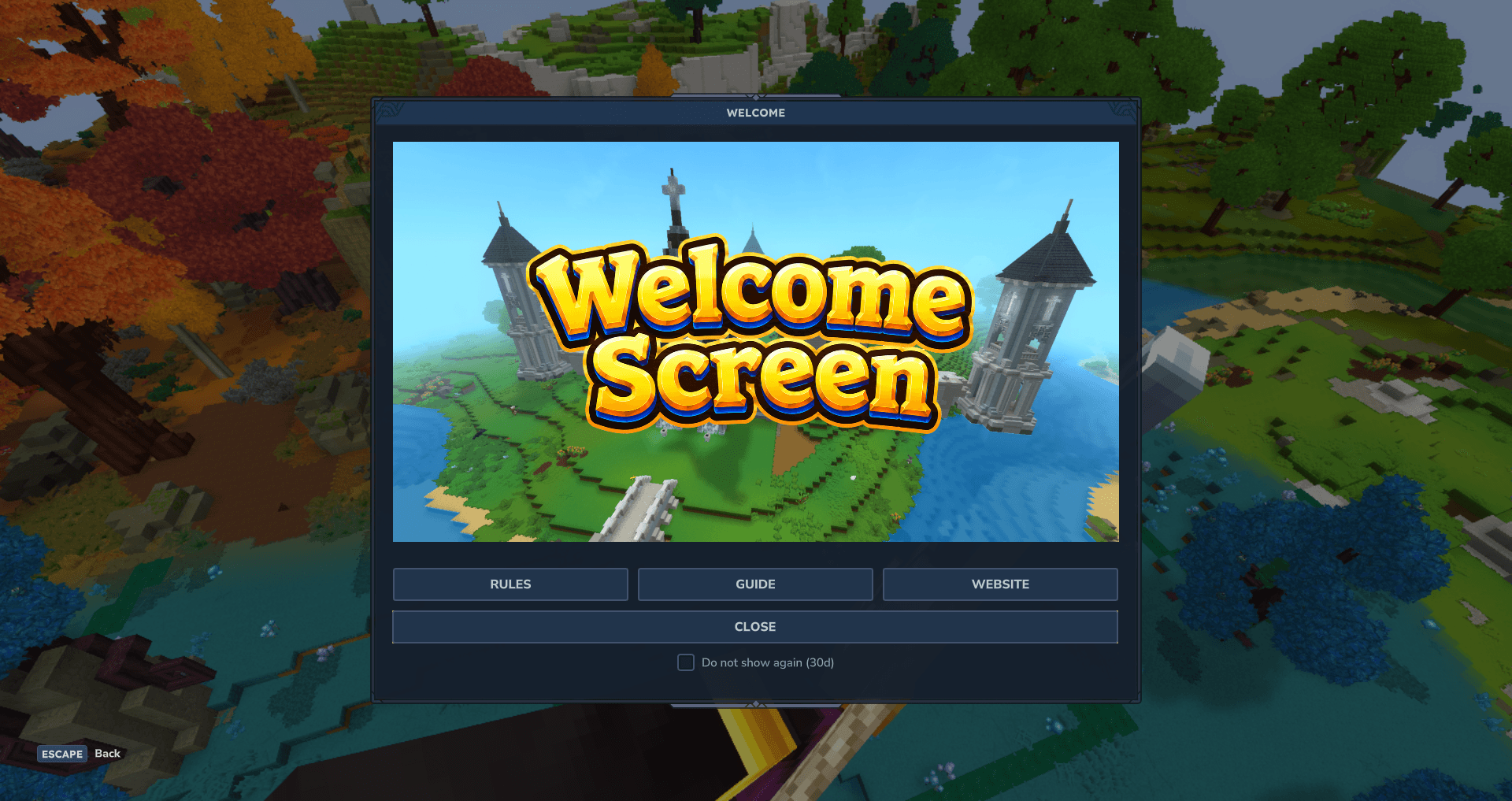
TheBasics: WelcomeScreen adds a clean, customizable welcome popup for Hytale servers. Use it to greet players, show your server branding, link them to important commands, and give them quick access to rules, guides, websites, or any other server feature you want front and center.
Built for server owners who want a simple, polished first impression without forcing players to read chat spam or hunt for server information.
✨ Features
🖼️ Custom Welcome Splash Screen
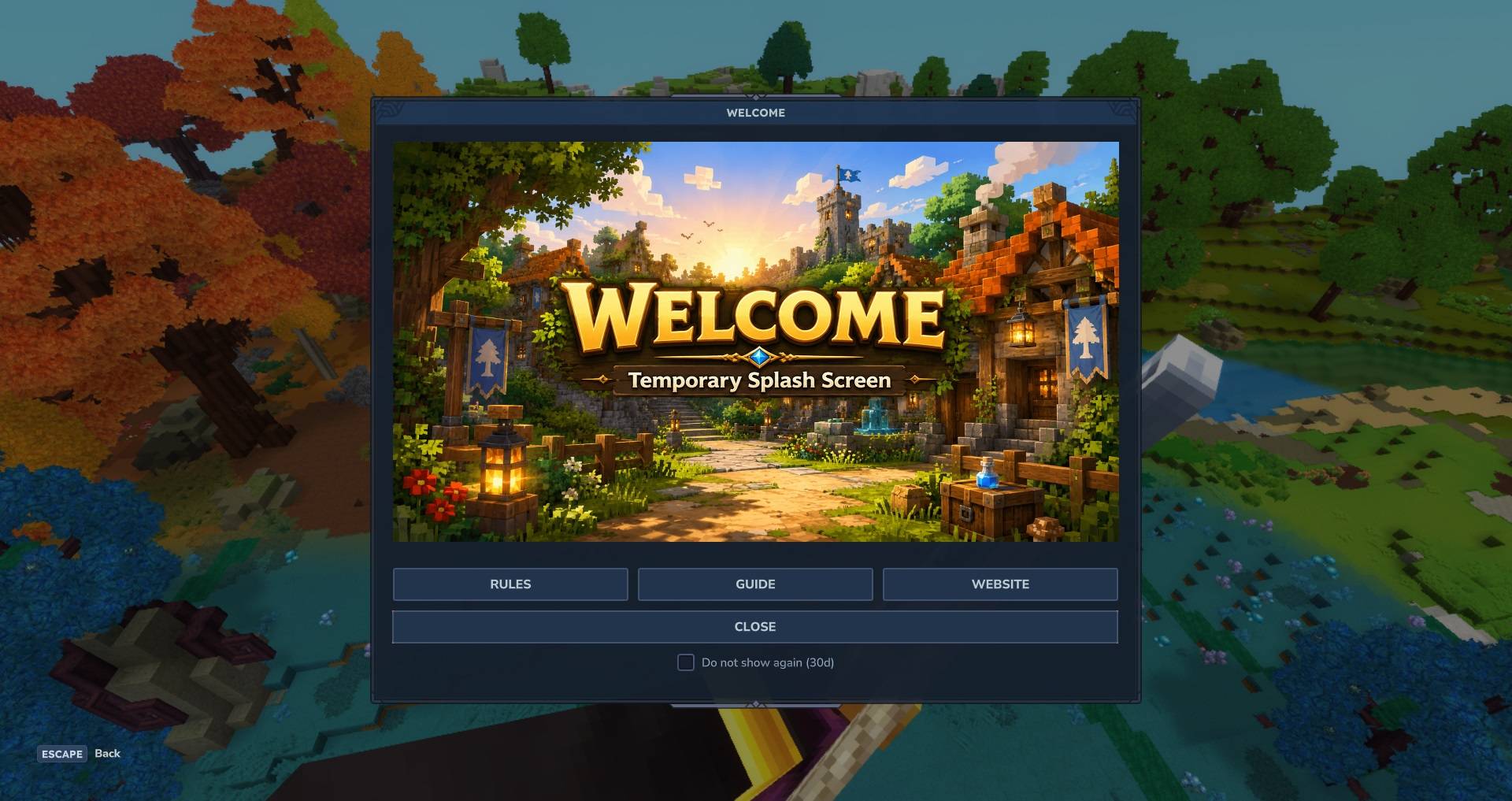
Show a large splash image inside the welcome window. Perfect for server logos, announcements, event banners, RPG introductions, rule reminders, or seasonal artwork.
The default image is included, but server owners can add their own custom splash image.
🧭 Three Custom Buttons
The welcome screen includes three configurable buttons.
Default setup:
Rules → /rules
Guide → /info
Website → Any webpage link
Through the admin menu, you can change:
- Button names
- Button commands
- Website links
The third button is made for website links, but can be adjusted for your server needs.
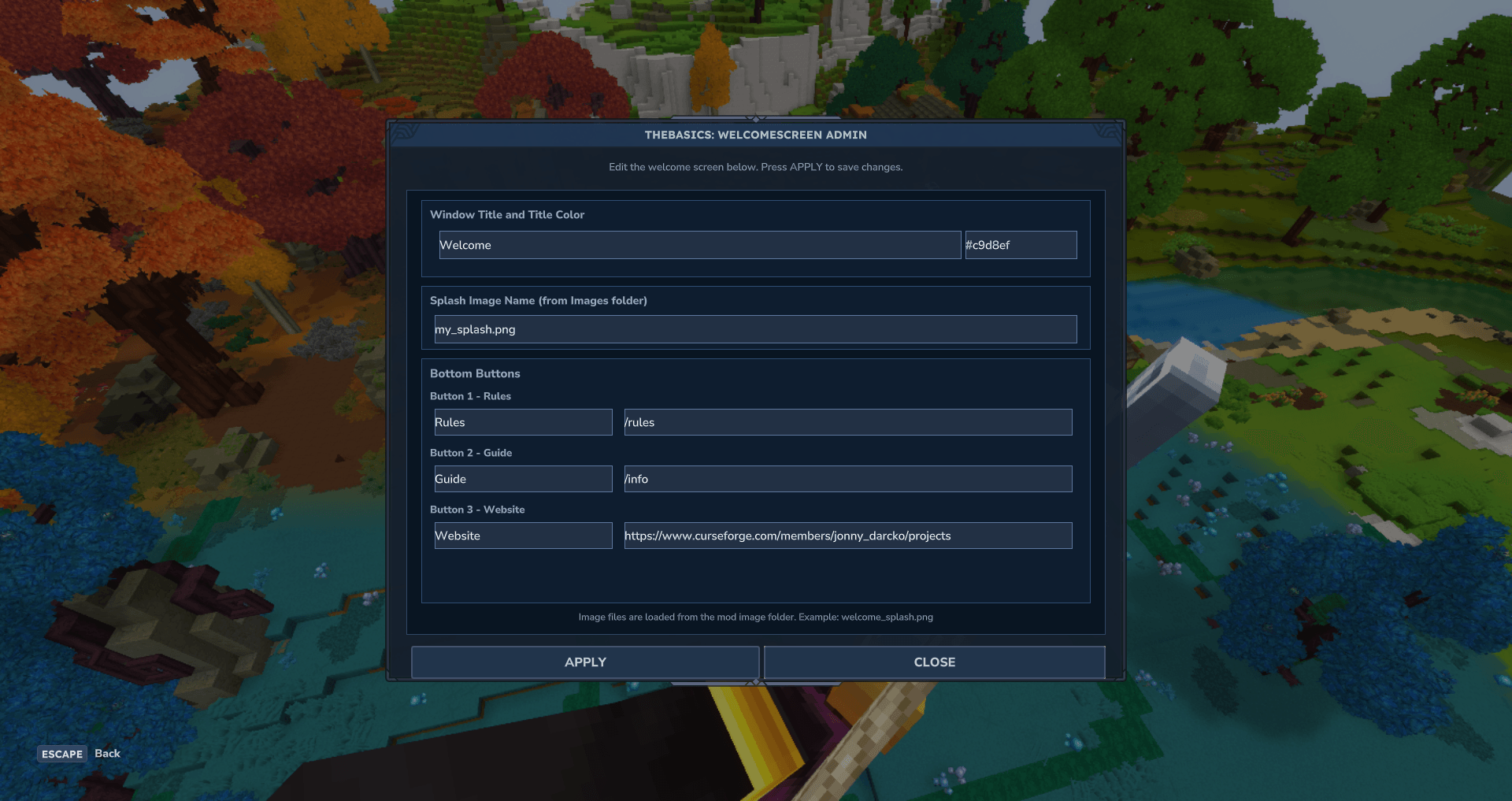
⚙️ In-Game Admin Editor
OP/admins can edit the welcome screen from inside the game using:
/welcome admin
The admin panel lets you change:
- Window title
- Title color
- Splash screen image name
- Rules button title
- Rules button command
- Guide button title
- Guide button command
- Website button title
- Website link
Press APPLY to save changes.
🚪 Player-Friendly Welcome Window
Players can open the welcome screen anytime with:
/welcome
Backup command:
/welcomescreen
The screen can also appear automatically when players join, depending on the config.
✅ Do Not Show Again Option
Players can choose not to show the welcome screen again if the option is enabled. This is useful for servers that want to show important information once without annoying returning players.
📜 Commands
Player Commands
/welcome
Opens the welcome screen.
/welcomescreen
Backup command that also opens the welcome screen.
Admin Commands
/welcome admin
Opens the admin editor.
/welcome reload
Reloads the config and refreshes the welcome screen setup.
🔐 Permissions
Admin access uses:
thebasics.welcomescreen.admin
Players do not need special permissions to use /welcome.
🛠️ Installation
- Download the mod jar.
- Place it into your Hytale server’s
modsfolder. - Start the server once.
- The mod will create its folder and config files.
- Configure the welcome screen through
/welcome admin. - Use
/welcome reloadafter making file/config changes.
🖼️ Custom Image Setup
After the mod runs once, it creates a folder for the runtime asset pack.
To use a custom splash image:
- Put your image in the generated data folder:
mods/TheBasics_WelcomeScreen/data/
Example:
mods/TheBasics_WelcomeScreen/data/my_splash.png
- In game, run:
/welcome admin
- Set the splash image name to:
my_splash.png
- Press APPLY.
- Run:
/welcome reload
⚠️ Important Custom Image Note
The first time the mod creates the TheBasics_WelcomeScreen folder, Hytale may show it as a separate generated asset pack/mod entry.
If your custom image shows as a red X or missing image:
- Exit the world/game.
- Open the Hytale mod window.
- Enable the generated
TheBasics_WelcomeScreenasset pack/folder. - Restart/rejoin.
- Run
/welcome.
Once enabled, custom images should display correctly.
📁 Config Folder
The mod creates:
mods/TheBasics_WelcomeScreen/
Inside it, you will find the config, custom image folder, and runtime asset files used by the welcome screen.
Main config:
WelcomeScreen.json
Custom images:
data/
Runtime UI assets:
runtime-assets/Common/UI/Custom/Pages/
Most server owners only need to touch the admin menu and the data folder.
🎮 Good For
- RPG servers
- Survival servers
- Minigame hubs
- Modded community servers
- Rule screens
- First-join introductions
- Event announcements
- Server guide menus
- Website and Discord links
- Custom branded server splash screens
🧩 Part of TheBasics
TheBasics: WelcomeScreen is part of the TheBasics mod collection, focused on simple, useful Hytale server tools that are easy to configure and friendly for both admins and players.
TheBasics: WelcomeScreen Team