Discord_KdIXU50RRj.png
Discord_1h4Vx5kiPx.png
Description
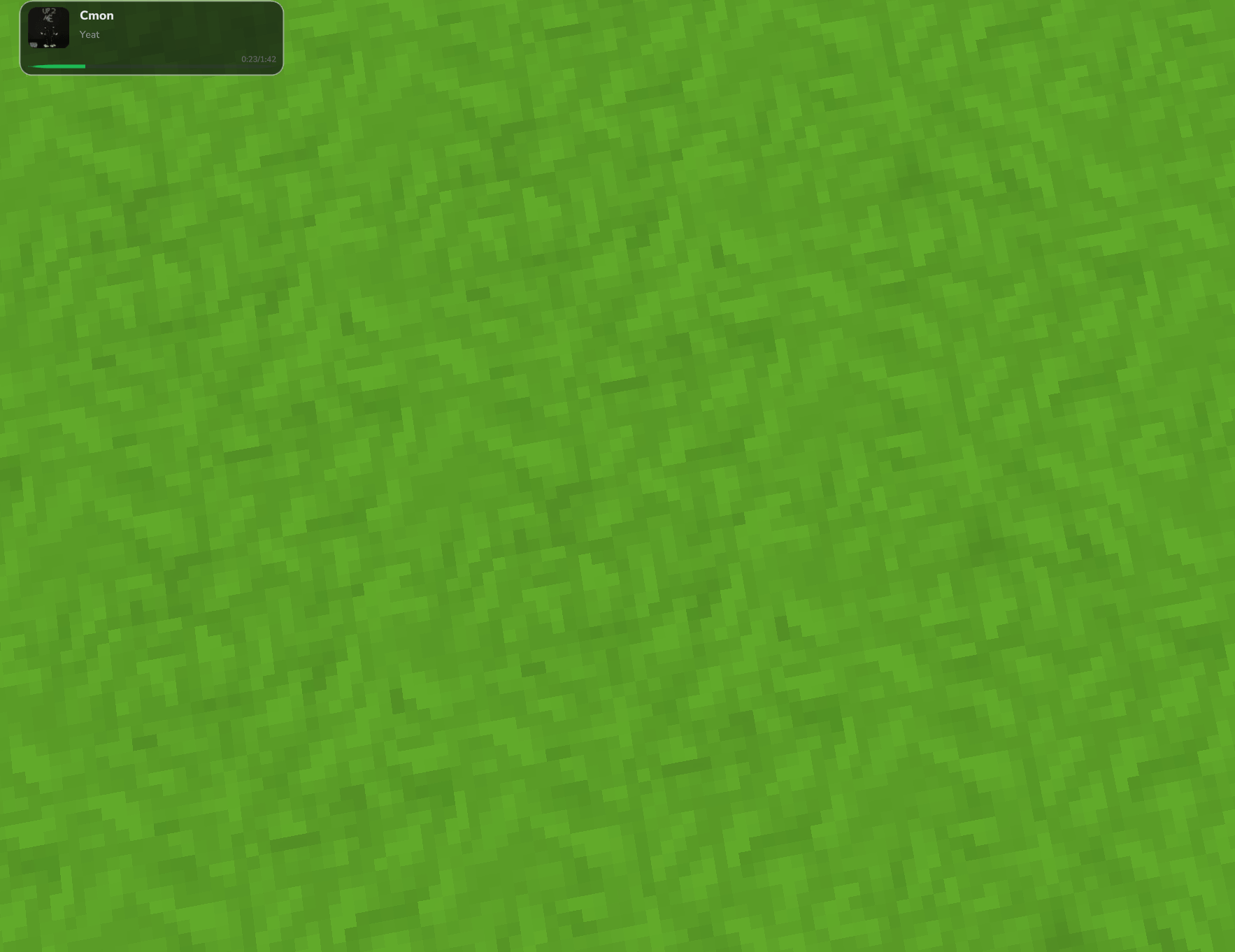
MusicDisplay shows what you’re listening to on Spotify as a clean in-game HUD.
Customize the overlay, connect your own Spotify account, and control playback without leaving Hytale.
Features
- Live now-playing HUD — track, artist, and time (e.g.
1:16 / 3:22) - Album cover — rounded cover art next to the track info (can be turned off)
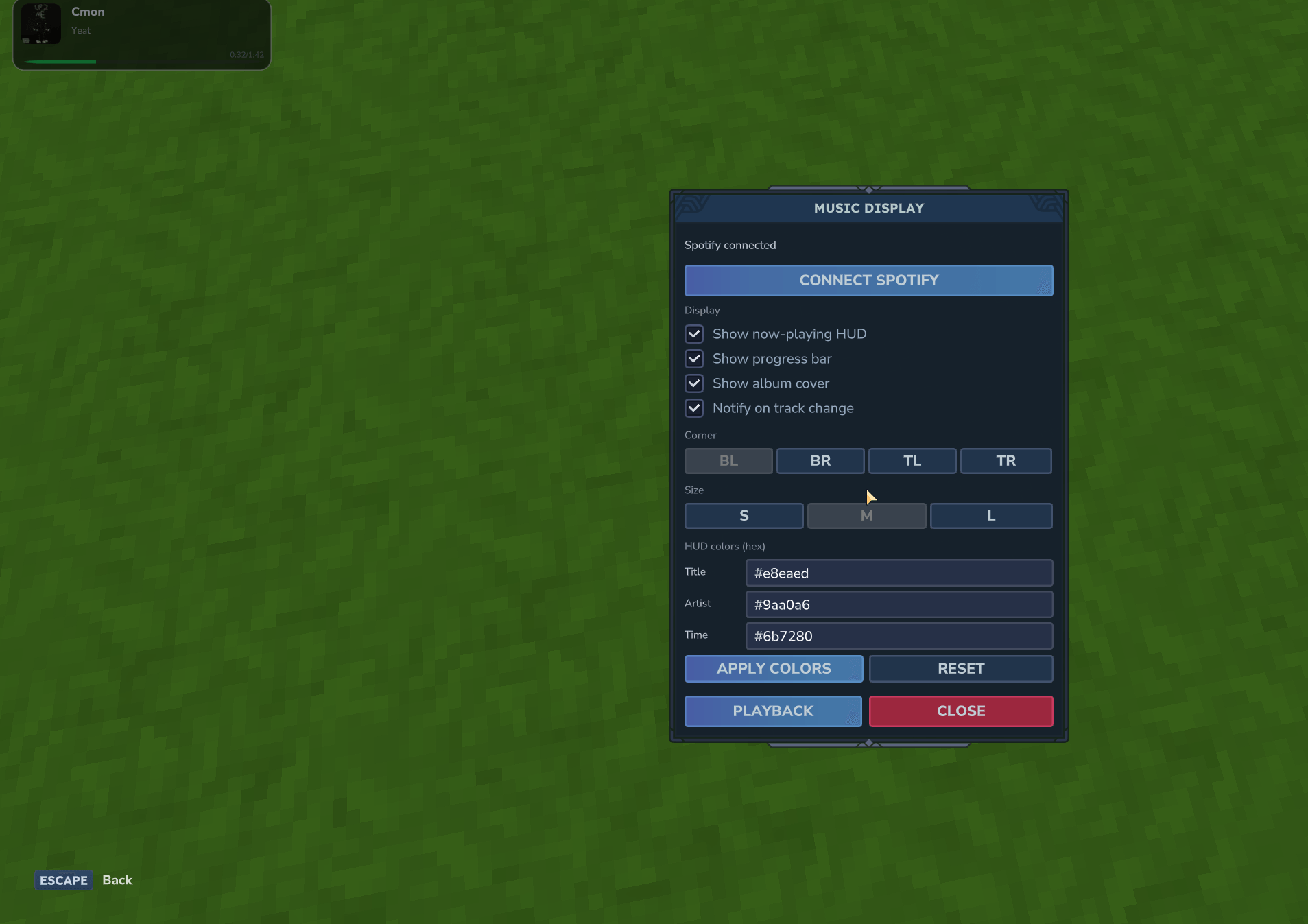
- Customizable overlay — screen corner, size (S / M / L), text colors, progress bar on/off, track-change notifications
- Spotify connection — connect your account in-game
- In-game settings panel — open with
/musicdisplay(or/msd) - Playback controls — play, pause, next, previous, volume (Spotify Premium required for playback control)
- Per-player setup — each player connects their own Spotify account
- Multi-language — English, Polish, German, French, Spanish
First-time setup (Spotify)
- Run
/musicdisplayin-game. - Click Connect Spotify — the setup URL is copied to your clipboard.
- Paste it in your browser (Ctrl+V).
- In the Spotify Developer Dashboard:
- Create an app (or use an existing one)
- Open Settings → Redirect URIs
- Remove any
localhostentries (Spotify no longer accepts them) - Add this Redirect URI exactly:
http://127.0.0.1:8888/callback - Click Save
- Copy your Client ID and Client Secret.
- Paste them on the setup page and click Connect Spotify Account.
- Approve all requested permissions in Spotify.
- Return to Hytale — the HUD appears when music is playing.
Note: Port 8888 must be free on your PC during setup.
Note: Port 8888 must be free on your PC during setup.
| Command | Description |
|---|---|
/musicdisplay or /msd |
Opens settings (connect, HUD options)
|
/musicdisplay controls |
Opens playback controls UI
|
/musicdisplay play |
Resume playback
|
/musicdisplay pause / stop |
Pause playback
|
/musicdisplay next / skip |
Next track
|
/musicdisplay prev / previous |
Previous track
|
/musicdisplay toggle |
Show or hide the HUD
|
/musicdisplay hide / off |
Hide the HUD
|
No OP required — every player can use these commands.
Requirements
- Spotify Premium for skip / play / pause (display works without Premium)
- Free port 8888 on the player's PC for first-time setup
Music Display Team