Moving Head Spot Lights
- By
Hytale2026-01-26_22-34-31.png
Hytale2026-01-26_22-21-31_90.png
Hytale2026-01-26_22-20-37_1_80.png
Hytale2026-01-26_22-35-56.png
Description
Description
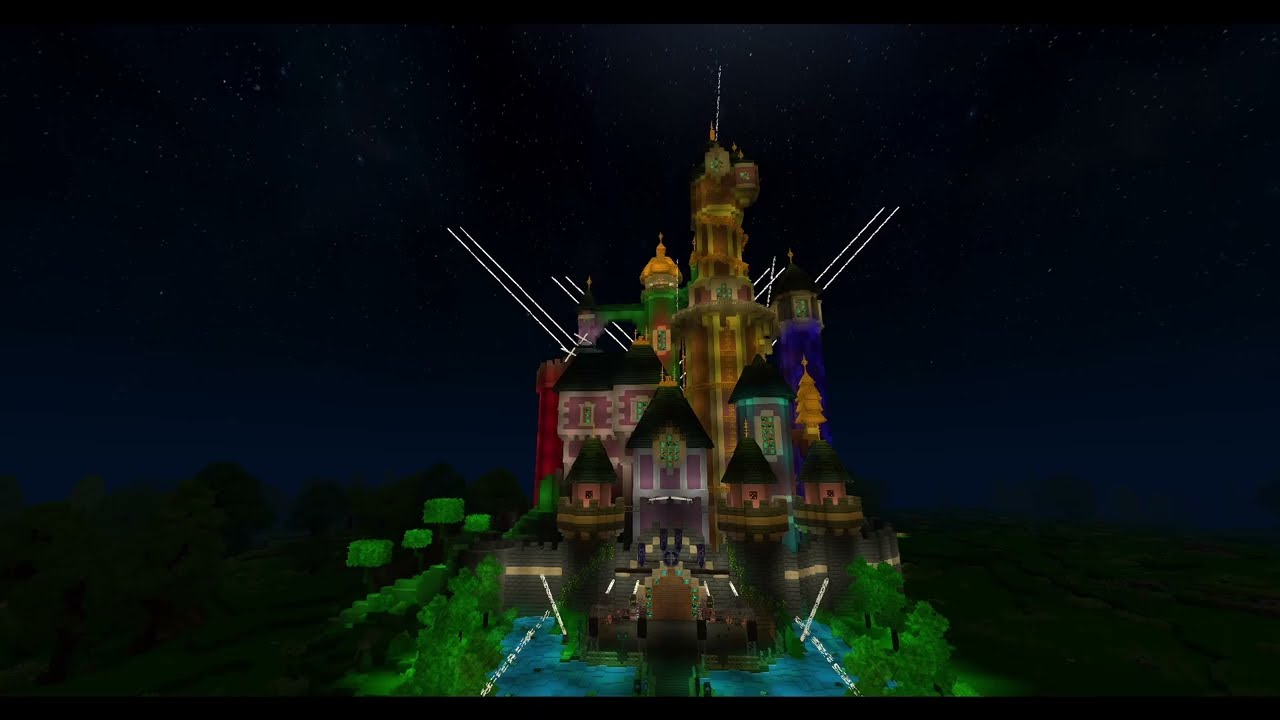
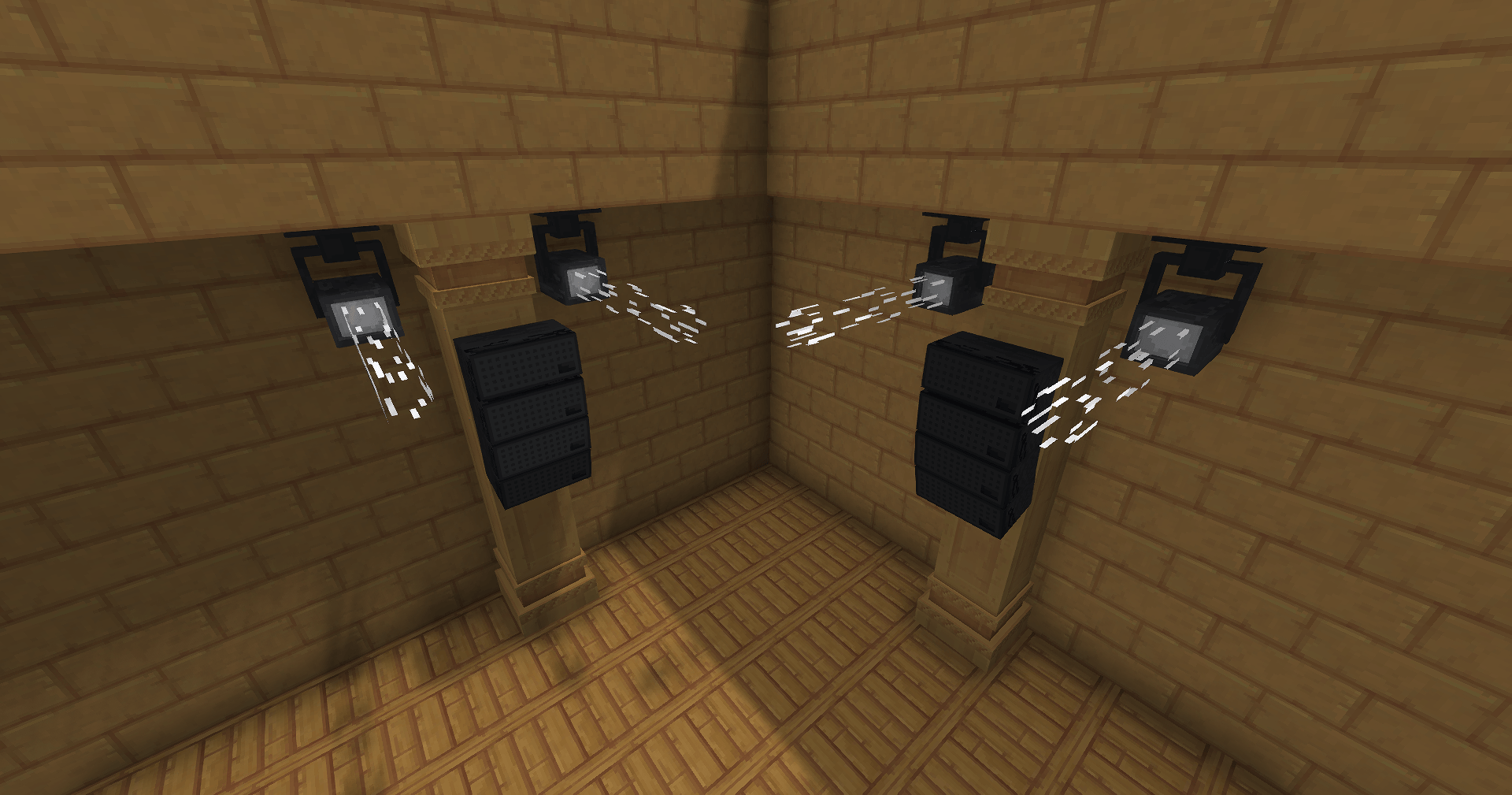
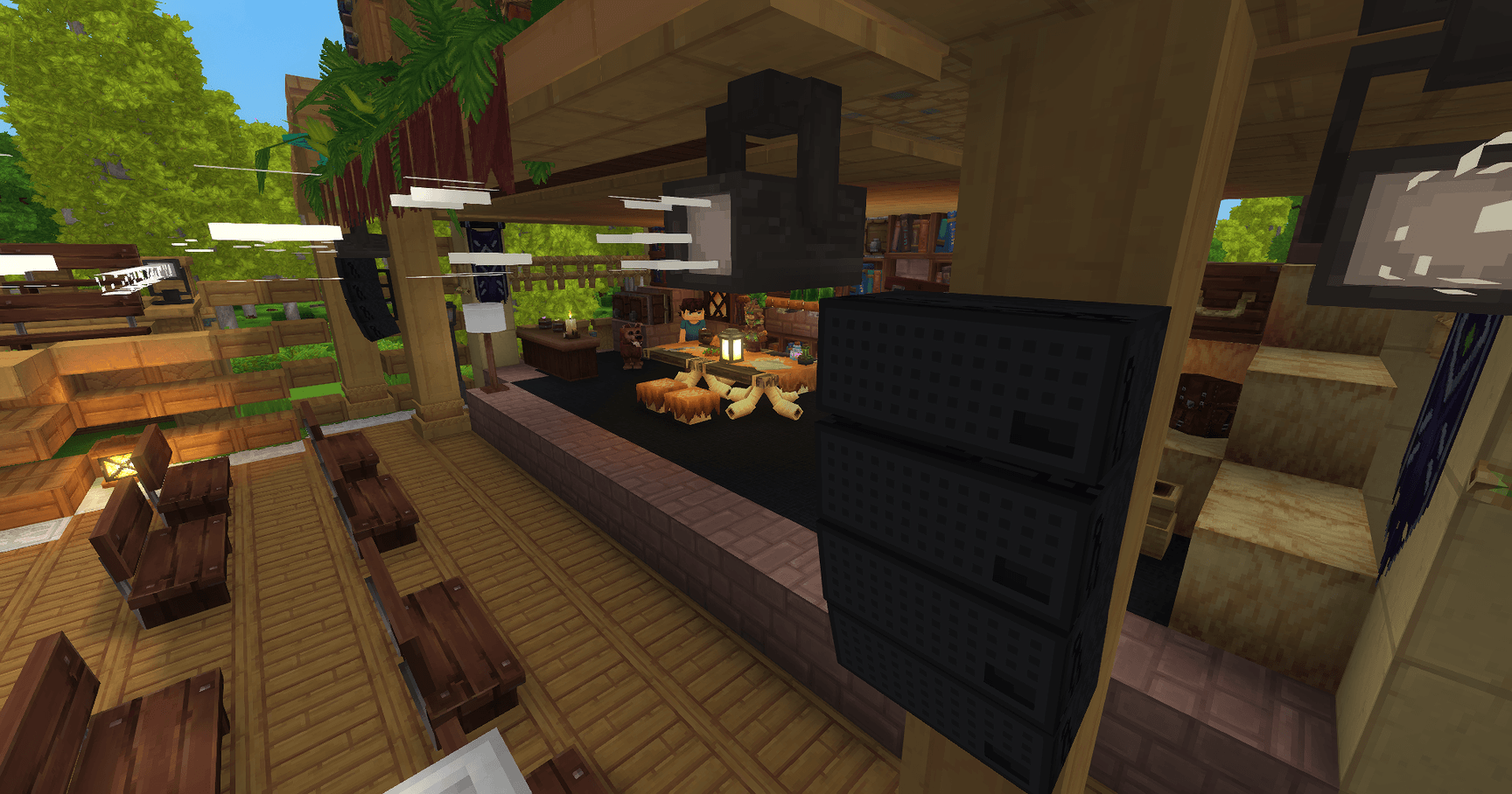
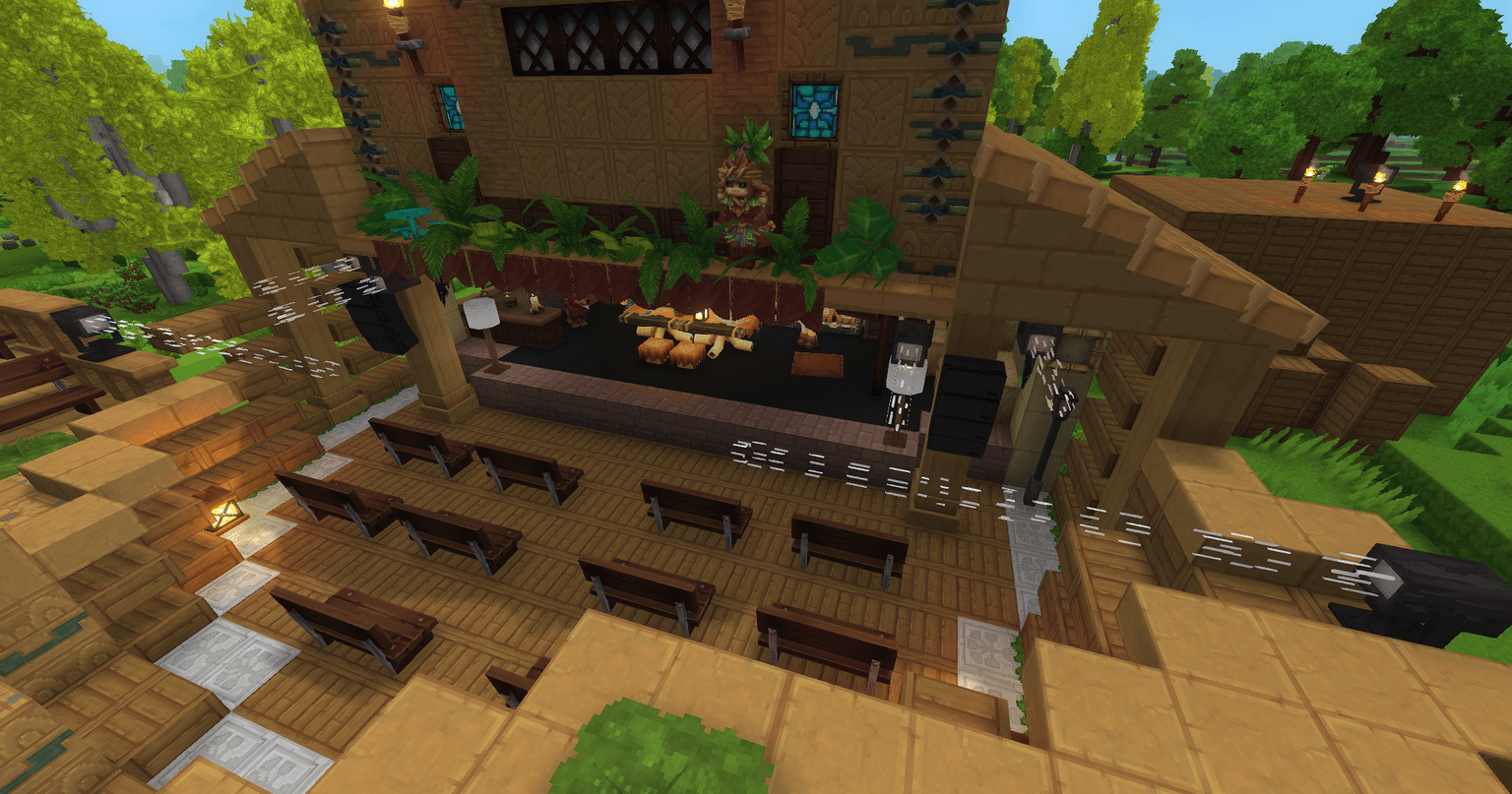
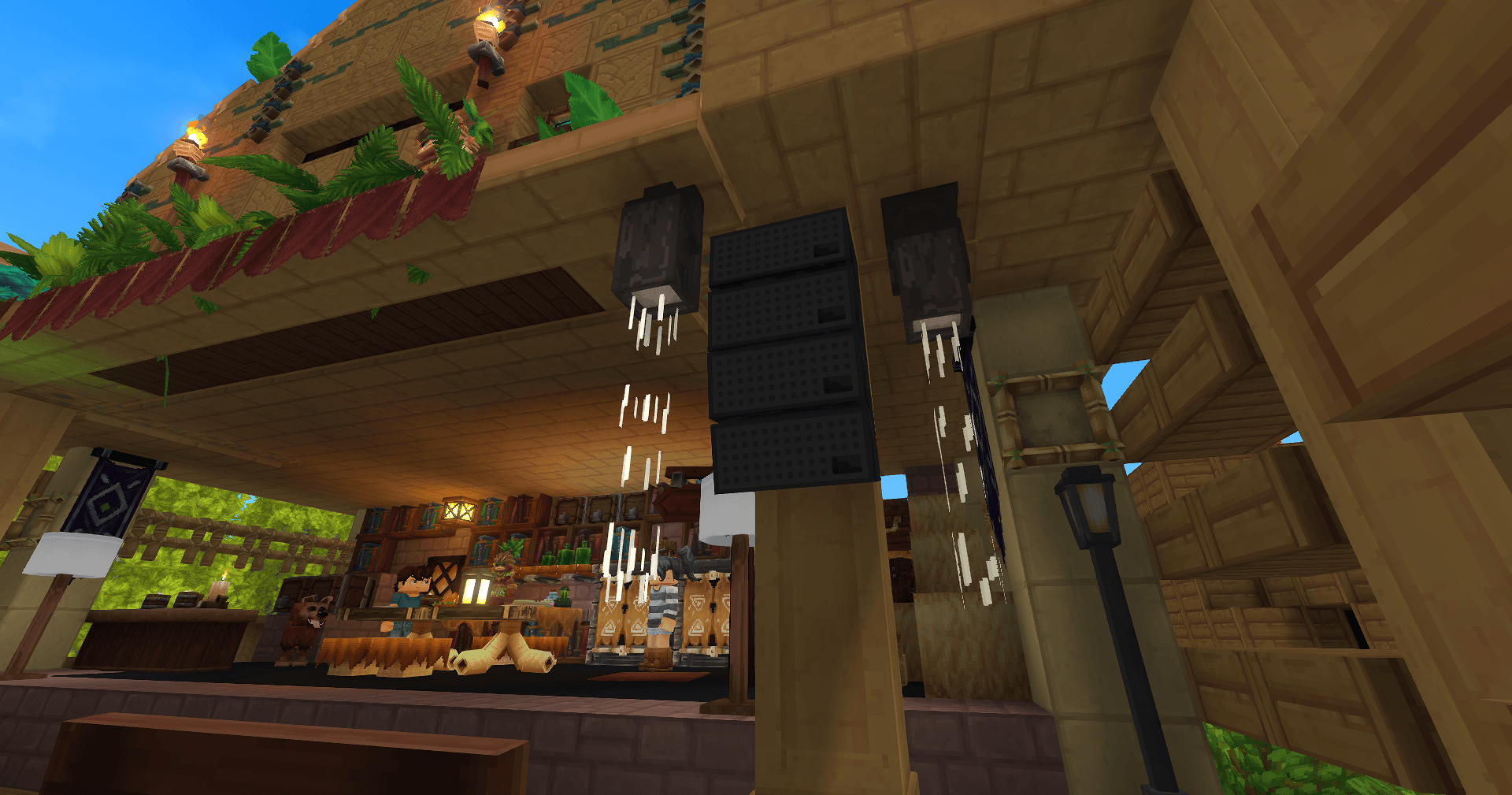
This mod adds real, functional moving heads to the game. You can use the new gui or commands to build your very own custom moving sequences and shows based on eight preset animations (more animations are expected to be released soon)!
You can also add your own custom music to the animation!
💎 Features
- 🏗️ Moving Heads
- 📏 Different beam ranges: 2, 4, 6, 12, 72 or 96 blocks
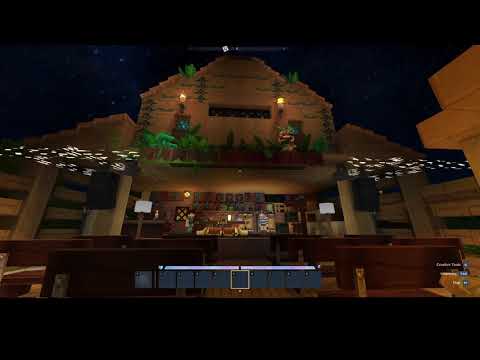
- 🔄 Two-sided spots: Left and Right. The animations for the left and right spots are mirrored. Place them accordingly on the left and right sides of your center area to create a mirrored scene (as shown in the video above).
- 🔊 Speaker: Decoration Block
- 🎬 Animations:
- 🎞️ 13 predefined Block-Animations: Combine them to create your own custom amazing shows!
- 🎵 Sound Integration: Play sounds to perfectly sync with your light sequences!
- 🌐 Available Languages: English, German
Usage
Create new Animation
To create a new animation let's start from the uʍop ǝpᴉsdn 🔦🚲:
The main command to create animations is /mh gui. The four tabs/steps in the gui guide you trough the process creating a new animation.
Following guide shows only a small set of available commands for each step. Refer to the /help command to familiarise yourself with all the available commands.
1. Create new SceneGroup
A SceneGroup is a 'container' that can hold multiple blocks. For example, you could put all the spots on the stage in one group and put the rest in another 'side' group.
Create a new scene group directly in the gui clicking the "plus" button.
Next, we focus on each spot on the stage in turn and add them with the command /mh sc add stage. This command adds the block you are looking at to the group.
To view all added block type /mh sc show stage. All block will be shown up using blue particles.
Let's test! /mh sc play stage Up
2. Create a new StateFrame
A Stateframe combines states and SceneGroups. It determines which animation is played for each Scenegroup. You can create multiple reusable StateFrames, such as 'stageUp', 'stageDown' and 'stageParty1'.
If you want the animation repeat for X times make use of the "Iterations"-Property.
3. Create AnimationNode
An AnimationNode plays all the added StateFrames simultaneously. So let's create a new one and add the StateFrames that we have made using the dropdown on top of the Save-Button.
The selected will be set at the same time to their predefined SceneGroups.
Let's test! /mh annode play [name]
4. Create Animation
Almost done! Finally we have to define a new Animation.
Now add all the AnimationNodes you want. Animations play each node sequentially, while state frames within an AnimationNode are played in parallel. This allows for highly flexible animation combinations.
Let the party begin! /mh an play demo
Additional
Let's add some nice music to the animation: /mh annode addsound Custom_Music 10 10 10
"10 10 10" is the block location the sound should be sourced.
Animations
The animations are initiated by block state changes. Currently we have 11 animations and 2 additional states without an animation.
- Off
- On
- IntroSide
- IntroSide2
- IntroStage
- OutroStage
- PartyOne
- PartyTwo
- Down
- Up
- UpDownOne
- Background_Center
- Round_One
- Forward_Backward
- Background_Show_One
- FrontShow
License
Distributed under the MIT License. See LICENSE for more information.
Requirements
- Java 25
References
HyUi is included in delivered jar file.
The Moving Head Spot Lights Team