
{B113EB05-DB44-4CA6-A924-F99E6590A8F9}.png
{851505DF-7FD7-4601-B9DB-186F3AC5AAA1}.jpg
{481AD303-EF8D-438D-8FA7-014256FF95A6}.jpg
{B2D90ECC-E472-4C40-8E96-7B9EEE71976C}.jpg
Description
More Trigger Zones - Quick Guide
This mod adds effects you can use in the trigger zone editor: items and chests, projectiles, model and structure movement, a top-down camera, and command restrictions.
Create a zone, pick a trigger event, and add the effect you want. For a first test, it's easiest to use "enter zone" with no delay. Test your effects one at a time - that way it's much easier to tell which setting is actually doing what.
Position and Reference Point
Items, manual chest selection, and projectiles all share the same position settings:
Zone base - position is measured from the trigger's base.
Entity - from the position of whoever triggered the effect.
Event / signal - from the event block's position if one was passed; otherwise from the entity or the zone base.
Absolute coordinates - an exact spot in the world.
In the first three modes, the X, Y, Z fields are offsets, not world coordinates. For example, 0, 2, 0 means two blocks above the chosen point. Y controls height; X and Z are the world's horizontal directions.
Items and Chests - Items
Instead of separate effects for each operation, there are just two toggles here: where to add and what to add.
Where: on the ground or into a chest. What: a specific item by ID, or random loot from a loot table.
For a specific item, set the amount and the number of repeats. For example, amount 5 with 3 repeats gives you 15 items total. For loot tables, repeats mean independent rolls - the result depends on the table itself. Up to 100 repeats are allowed; 0 gives nothing.
You can pick a chest in three ways:
At a specified position - set the reference point and coordinates. For a double chest, either half works.
Nearest inside the zone - no coordinates needed. Picks the chest closest to the triggering entity, or closest to the zone base if there's no entity.
All inside the zone - runs for every chest found; loot is rolled separately for each one.
Automatic search only looks at loaded containers. The center of the chest's main block must be inside the zone's shape. If a double chest sits on the border, enlarge the zone so it comfortably covers the whole thing.
The "Clear chest first" checkbox wipes the previous contents before filling. Without it, items are added on top of what's already there. Leave some free space - overflow doesn't mean extra items get automatically dumped on the ground.
Example of restocking loot: pick a chest, set the source to "Loot table," choose your table, and use one repeat. Only enable pre-clearing if the old items really need to go.
Clear Chest - ClearChest
Use this effect when you only want to empty a chest without adding anything. The same three chest-selection methods are available, including double chests.
Clearing has no built-in undo. Test "All inside the zone" on a test chest first.
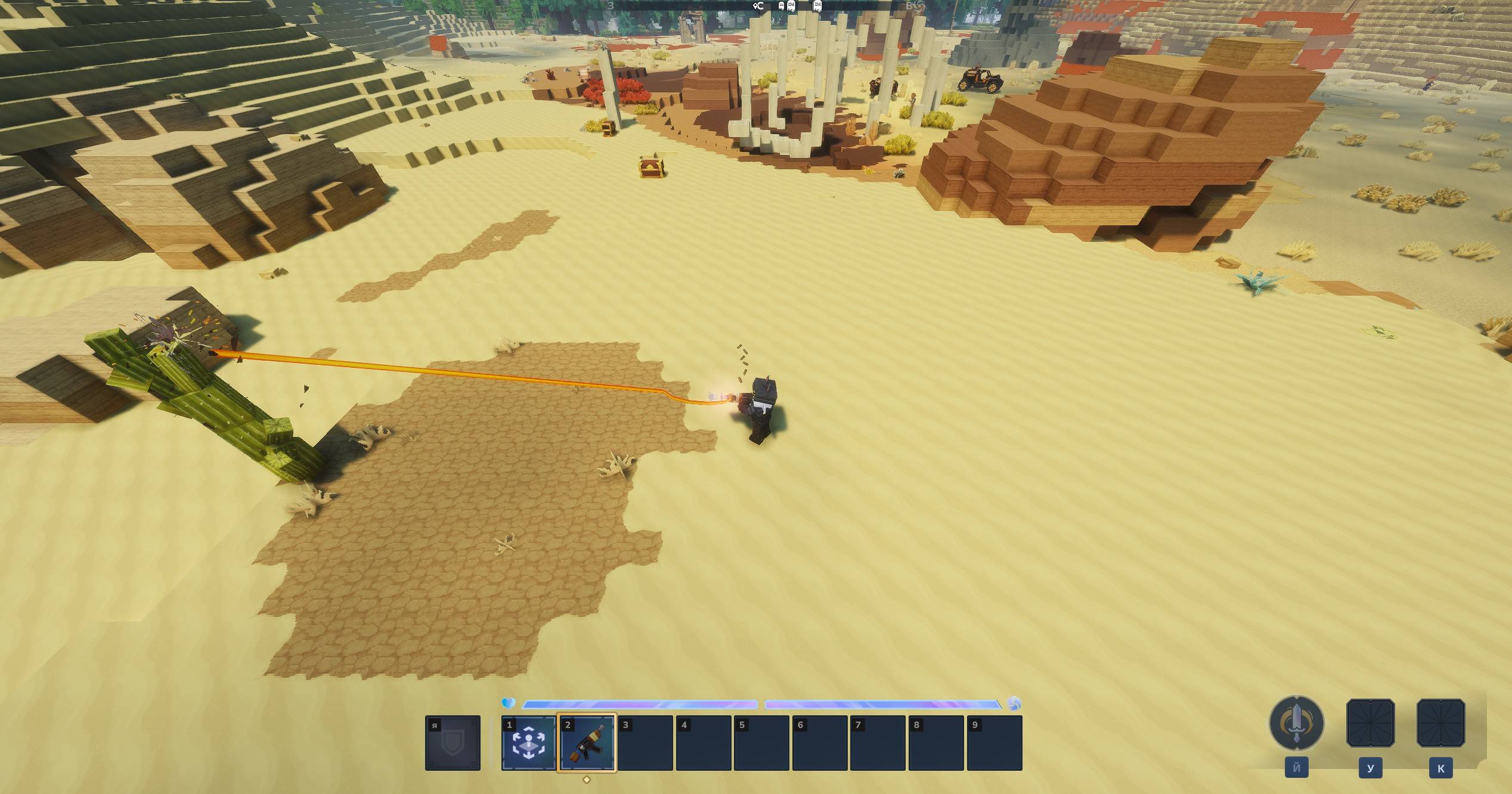
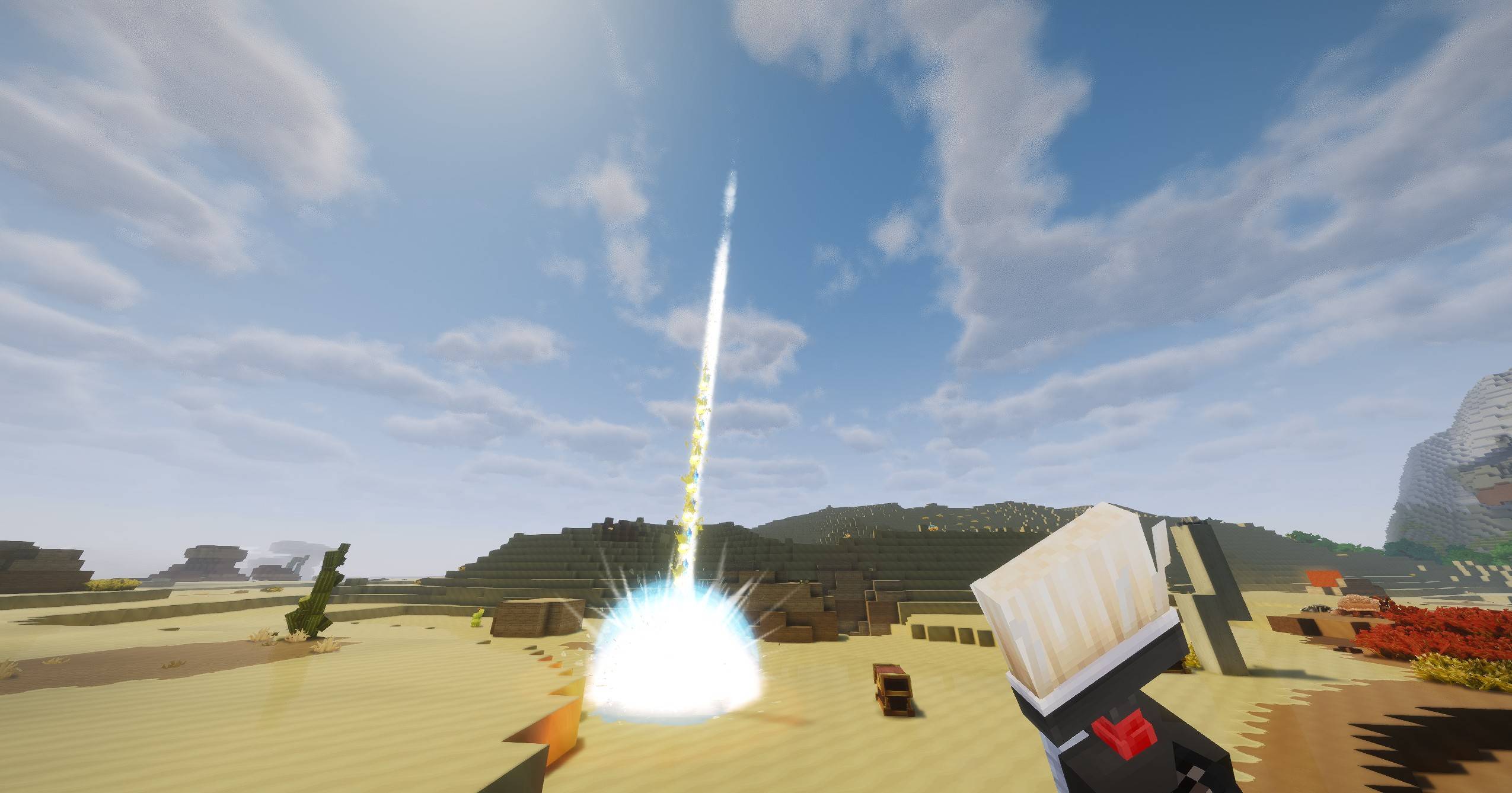
Spawn Projectile - SpawnProjectile
Pick an ID from the dropdown. The list is built from the server's loaded assets: vanilla projectiles and projectiles from installed mods, including both modern and legacy configurations. If an ID is missing, check whether the relevant mod actually loaded on the server.
Then set the spawn location, direction X, Y, Z, initial speed, and size.
0, 1, 0 - up; 0, -1, 0 - down; 1, 0, 0 - along the positive X axis.
Direction is normalized automatically: 10, 0, 0 doesn't fly faster than 1, 0, 0. A zero direction won't work.
Speed is in blocks per second. This is the initial speed - gravity and other asset properties can change the flight after that.
Size is a multiplier for the model and collision, from 0.05 to 20. 1 keeps the original size, 2 doubles it.
Don't spawn the projectile inside a wall or inside a player. Behavior and damage come from the asset: some projectiles are purely decorative, and some expect a weapon or NPC context. Just because an ID appears in the list doesn't guarantee it deals damage on its own.
Build 1.0.5 keeps the fix for modern projectile isolation: their interactions are handled separately from those of the player who triggered the zone. This fix relates to the player's own model disappearing when projectiles are launched.
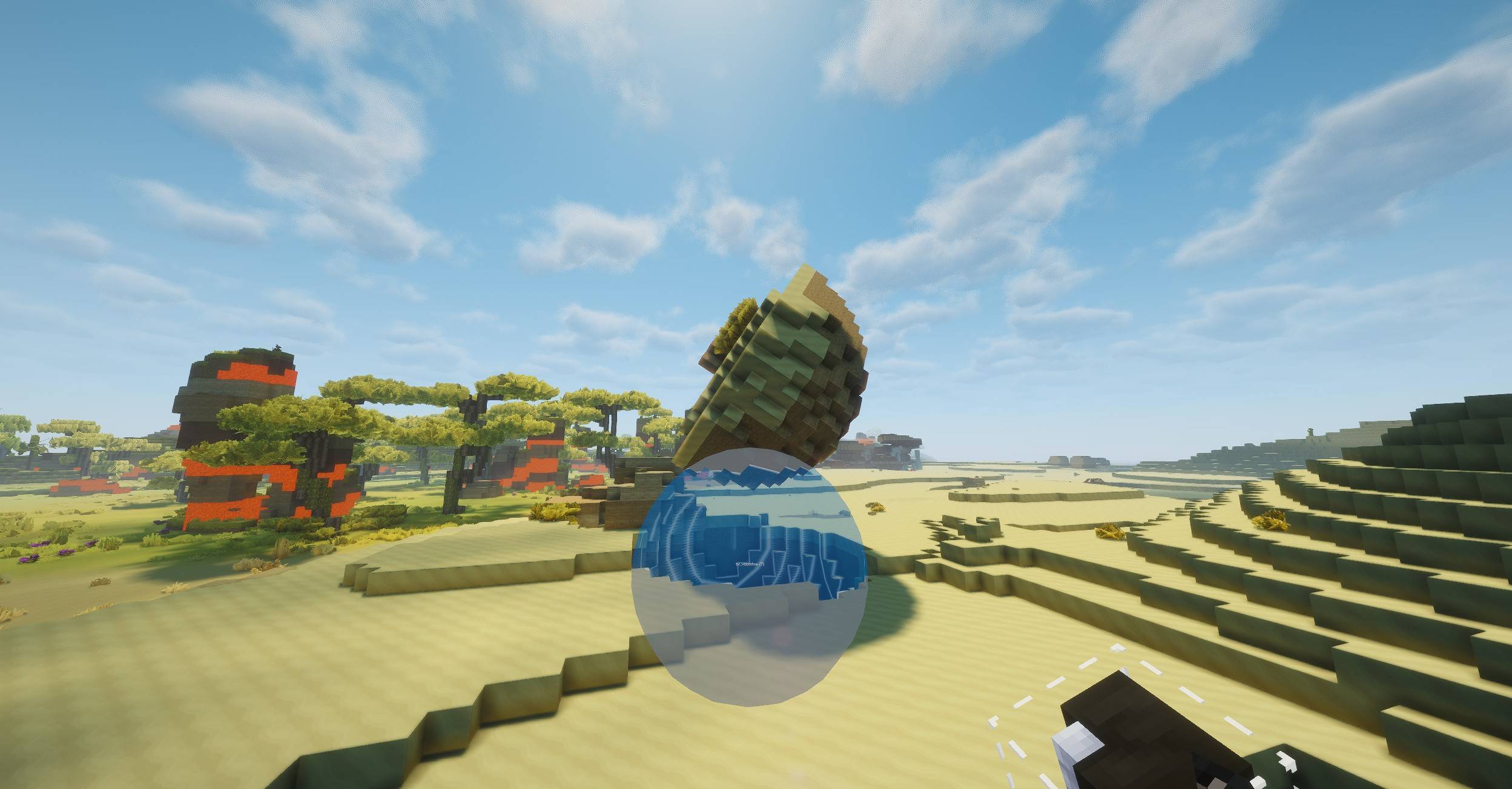
Moving Models - MoveEntities
There are two modes here: moving selected models, and moving all blocks in the zone as a single structure.
Individual Models
Leave "Move blocks as a single unit" off. In the ID field, enter a block or model ID, a UUID, or a network number like 194 or #194. Separate multiple values with commas. Network numbers change after a restart, so for a permanent setup it's better to use asset IDs or UUIDs.
An asset ID selects all matching entities with that ID, not just one instance. To launch, the model must be inside the zone and have a hard collision - rotated hard collisions are supported too. Once launched, it can move outside the zone. Regular placed blocks don't move in this mode - for those, enable structure mode.
Shared Movement Settings
Set the direction, speed in blocks per second, and distance from the starting point. For example, 0, 1, 0 with speed 2 and distance 6 means rising six blocks over three seconds.
Without return, the model travels the path once and stops.
Back and forth once - goes to the end, waits, comes back, and stops.
Back and forth infinitely - repeats the route with pauses at both ends. This mode takes priority over the one-time return.
The pause before returning and the effect's initial delay are different settings. For a one-way path, time equals distance divided by speed. A single round trip is two such passes plus one pause. The "Animation time" field is calculated automatically and accounts for rotation and pauses, but not the effect's initial delay.
Rotation X, Y, Z is in degrees, and rotation speed is in degrees per second per axis. For example, a Y rotation of 90 at a Y speed of 45 takes two seconds. Infinite rotation uses the speeds and never stops at the specified end angles.
Stop movement and Stop rotation are independent checkboxes: they halt the corresponding action when the effect fires. Re-entering during active movement doesn't reset the starting point or increase the set distance.
Whole Structure
Enable "Move blocks as a single unit." No ID field is needed: all non-empty blocks inside the zone's shape are selected. During movement they become solid models with rotated collision, then are restored as blocks along with any chest contents.
The main limitation: to turn back into blocks, the final position must align with the block grid, and rotations on each axis must be multiples of 90 degrees. When looping, the structure stays as models.
Detailed examples, stopping, saving after a restart, and troubleshooting: Moving a Whole Structure.
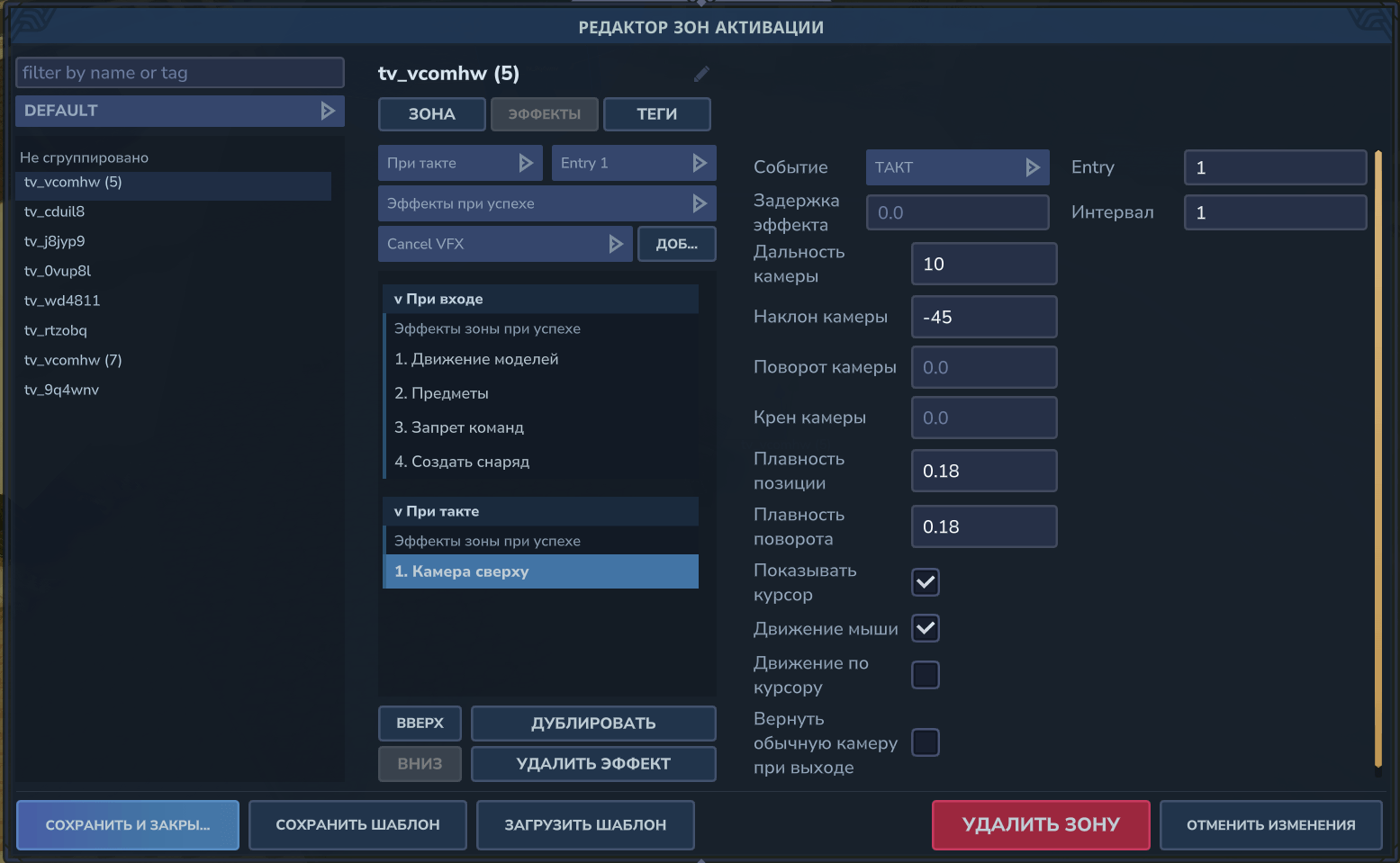
Top-Down Camera - TopDownCamera
Set the distance and angles: Pitch is tilt, Yaw is turn, Roll is roll. There's no separate height field. Position and rotation smoothing are configured separately; use these to blend between zones with different views.
Normal controls stay relative to the camera. "Move toward cursor" is a separate optional checkbox: when enabled, forward movement follows the direction from your view to the cursor.
The cursor display and mouse movement settings control how the mouse behaves in this mode. Aiming uses the look direction toward the target, not a fixed horizontal camera angle.
The "Restore default" checkbox returns the standard camera when you leave the zone. Without it, the set view may persist after exiting. There's no separate setting for rotating the camera to follow the player's turn.
Restricting Commands - RestrictCommands
Add this effect on zone entry. While the player is inside, commands are limited to a whitelist. An empty list blocks all commands handled by the server's command system.
Write commands separated by commas, semicolons, or new lines. A leading / is optional. Specify command and subcommand names, not specific arguments. Allowing a parent command also allows its subcommands.
The whitelist doesn't grant the player permissions they don't already have. When multiple zones overlap, a command must be allowed in every one of them. After leaving a zone, that zone's restrictions are lifted.
More Trigger Zones Team
