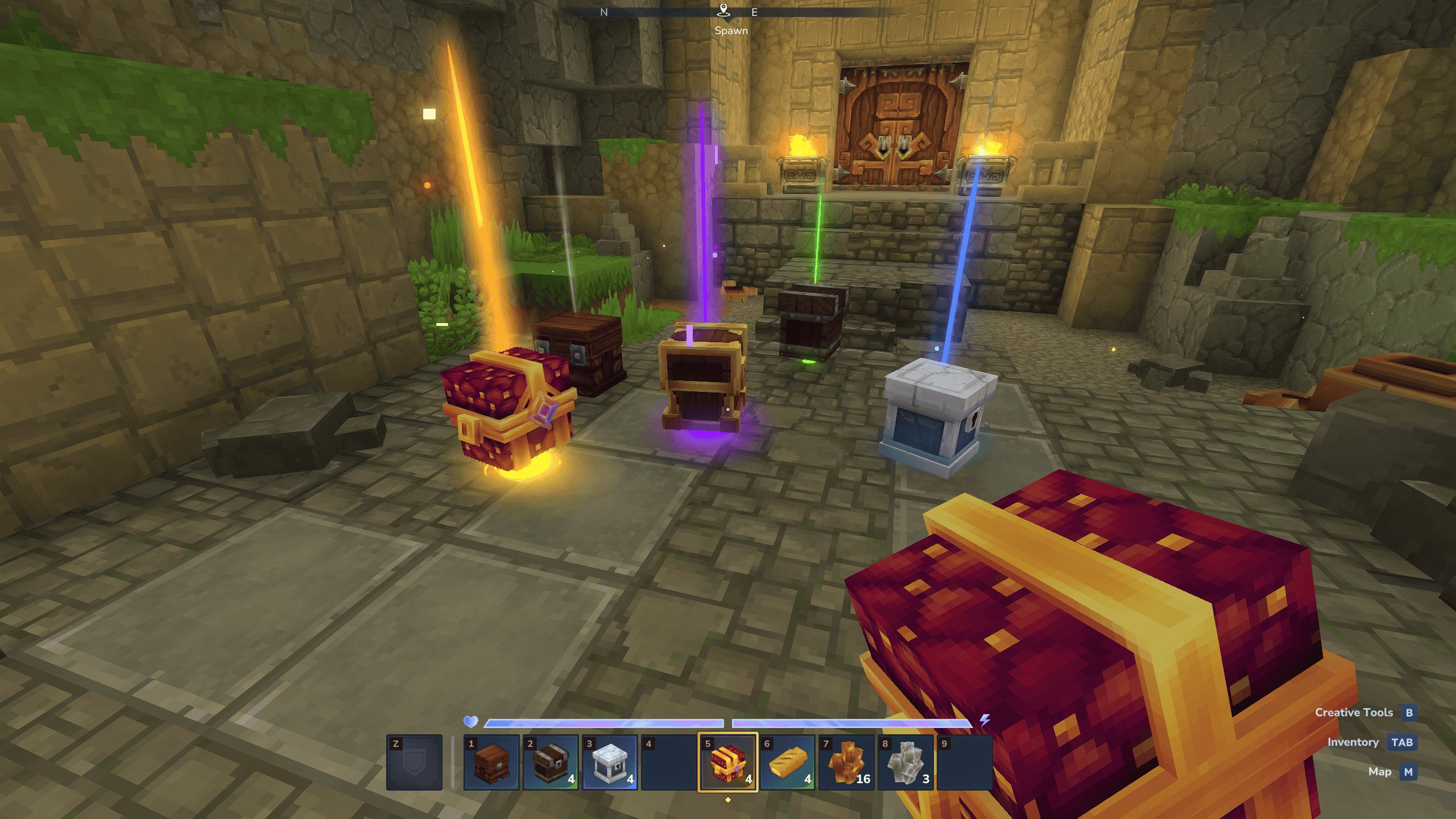
Physical Lootboxes.png
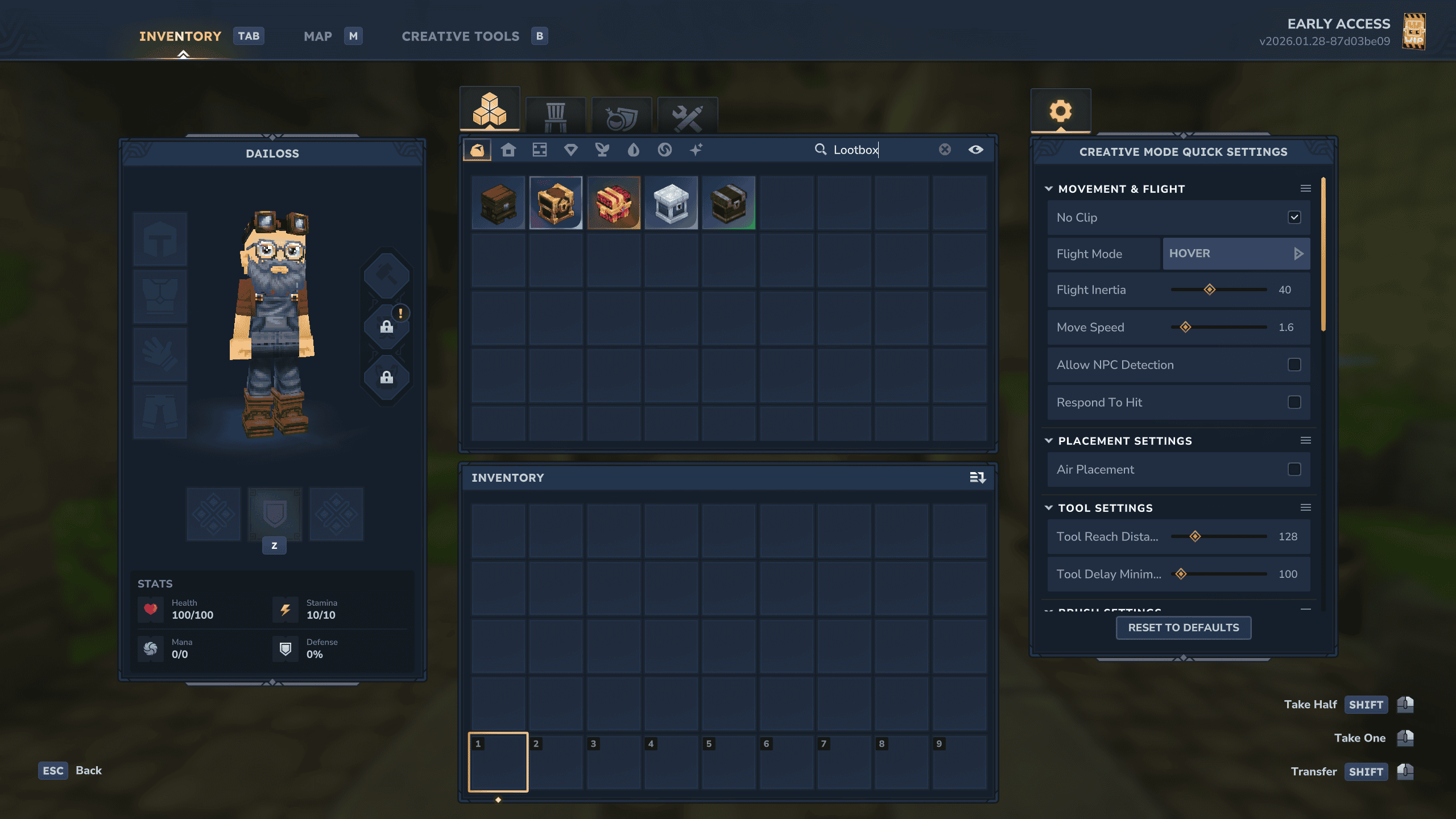
Lootbox Items.png
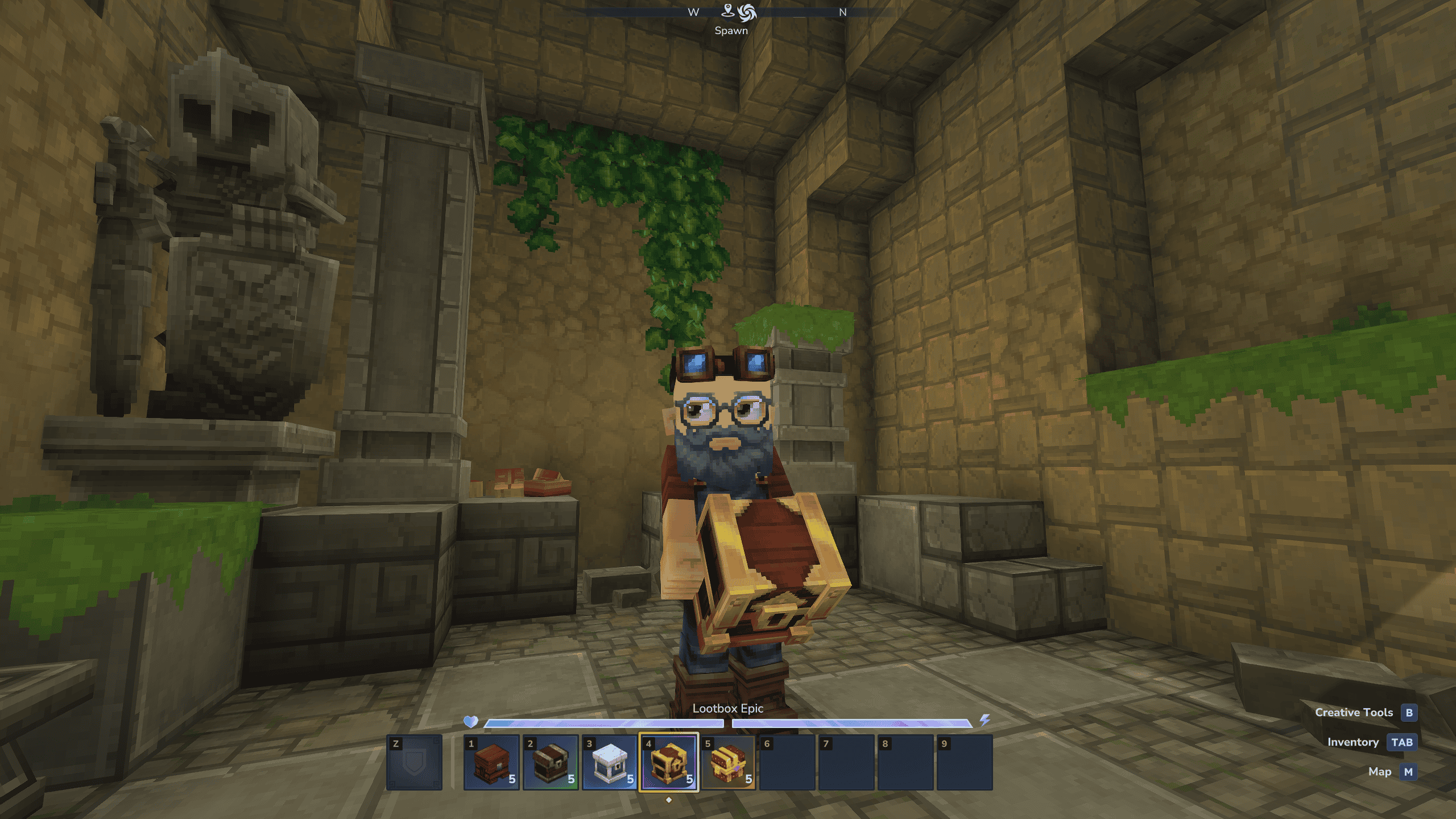
Holding Lootbox.png
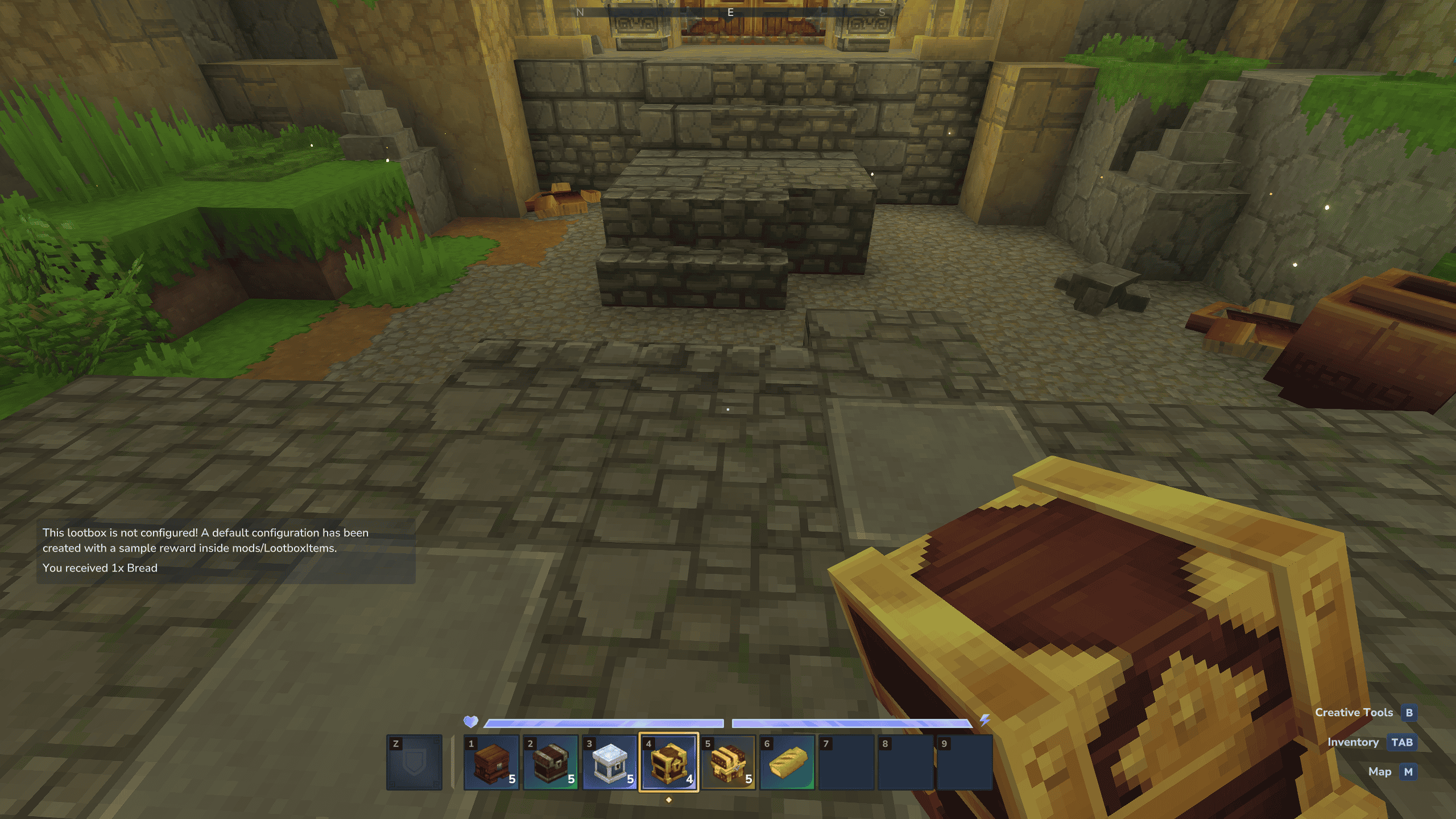
Use to Initialize.png
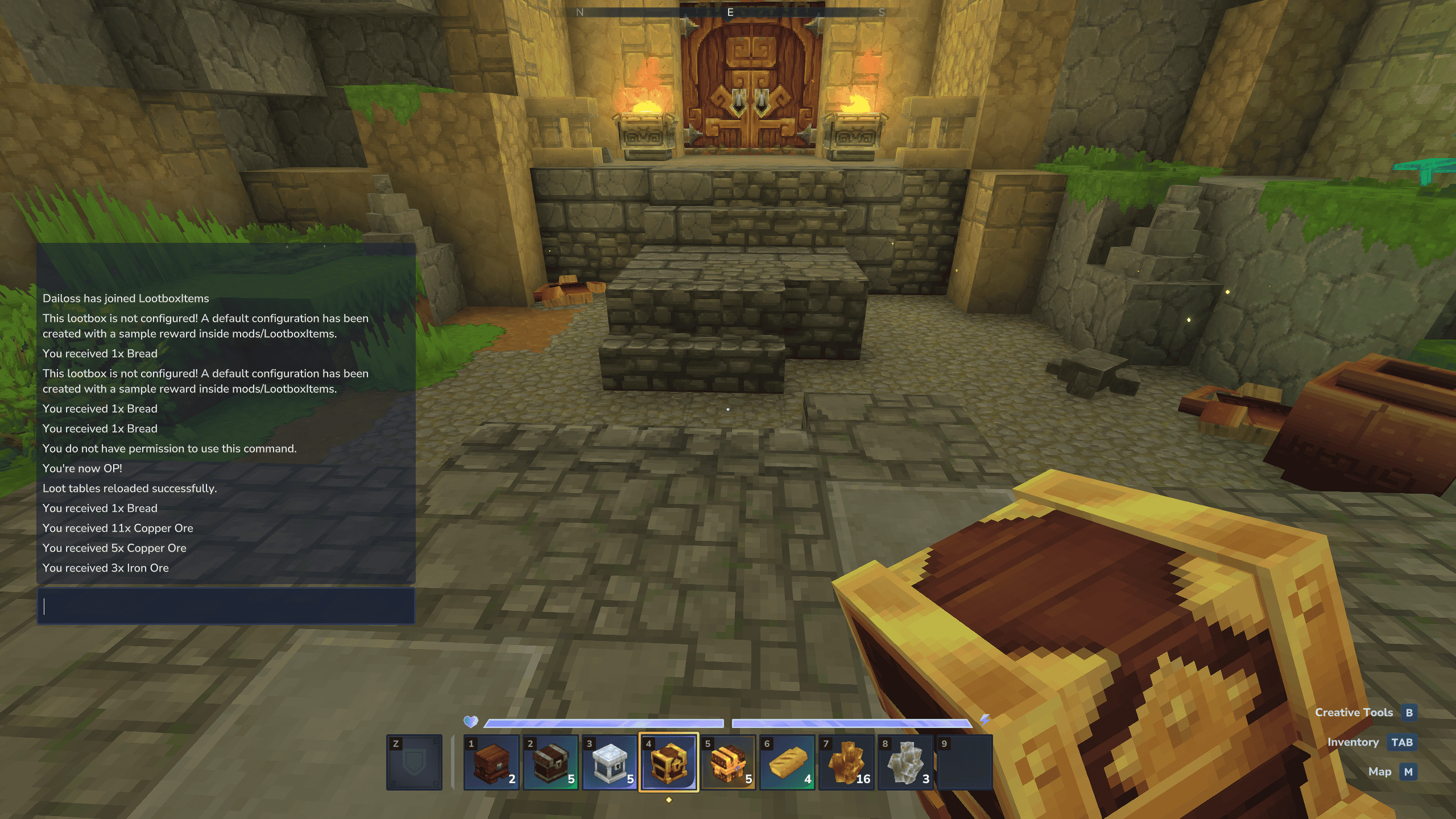
Use after configuration.png
Description
Lootbox Items
NOTE: Works with Update 3
Immersion-first rewards for Hytale servers.
Stop managing rewards through text menus and balances. This mod adds lootboxes as tangible, physical items that exist within your world, preserving the fantasy immersion of Hytale.
Why Choose Lootbox Items?
- True Immersion: No more
/openboxcommands. Lootboxes are physical items that players can carry, drop, trade with others, or lose in the heat of battle. - Infinite Compatibility: Because they are items, they work out-of-the-box with any other mod. Add them to monster drop tables, quest rewards, or hidden dungeon chests using standard item IDs.
- Total Control: Easily create custom lootbox types. Fully configure drop lists, quantities, and rarity chances via a simple config file.
- Zero-Downtime Updates: Update your loot tables on the fly. Use the hot-reload command to apply changes instantly without ever stopping your server.
- Admin Friendly: Use standard
/givecommands to distribute rewards or integrate them into your server’s existing economy effortlessly.
Getting Started (Basic)
Lootbox Items comes pre-loaded with 5 default lootboxes: Common, Uncommon, Rare, Epic, and Legendary. Here is how to set up your first reward table in less than 60 seconds:
Step-by-Step Setup
-
Find the Items: In Creative Mode, hit Tab and search for "lootbox" in the items section. You will see the 5 default lootboxes, grab any of them.
-
Initialize the Box: Use the item in your hand. A message will appear in-game letting you know that this lootbox is not configured yet.
-
Locate the Config: Navigate to your server's
mods/LootboxItemsfolder. You will see a new JSON file named after your lootbox (e.g.,lootbox_common.json).-
Note: If the folder or file hasn't appeared yet, simply run the
/lootboxadmin savecommand to force a save.
-
-
Configure Rewards: Open the JSON file and add your desired items, quantities, and drop chances. Save the file when you're done.
-
Apply Changes: Run the command
/lootboxadmin reloadto instantly load your rewards into the game. (See "Simple JSON Configuration")
That’s it! Your lootbox is now active and ready to be distributed to players as a physical reward.
Admin commands
/lootboxadmin save– Persists current settings and manually generates any missing.jsonfiles for new items. (Need permissionlootboxitems.admin)/lootboxadmin reload– Hot-Reload. Instantly applies your.jsonchanges to the live game environment. (Need permissionlootboxitems.admin)
Simple JSON Configuration
Fine-tune your economy with precision. Define exactly which items drop, their quantity ranges, and their specific probabilities:
{
  "rewards": [
    {
      "itemId": "Ore_Copper",
      "minQuantity": 5,
      "maxQuantity": 15,
      "chance": 80.0
    },
    {
      "itemId": "Ore_Iron",
      "minQuantity": 1,
      "maxQuantity": 3,
      "chance": 20.0
    }
  ]
}
To ensure your JSON is valid before reloading, you can use a "JSON Validator" online.
Suggested JSON Configurations for the lootboxes that come with the mod
lootbox_common.json
{
  "rewards": [
    { "itemId": "Food_Fish_Raw", "minQuantity": 2, "maxQuantity": 5, "chance": 14.0 },
    { "itemId": "Plant_Fruit_Apple", "minQuantity": 2, "maxQuantity": 6, "chance": 13.0 },
    { "itemId": "Bandage_Crude", "minQuantity": 1, "maxQuantity": 3, "chance": 13.0 },
    { "itemId": "Rubble_Stone", "minQuantity": 1, "maxQuantity": 5, "chance": 15.0 },
    { "itemId": "Ingredient_Stick", "minQuantity": 5, "maxQuantity": 15, "chance": 15.0 },
    { "itemId": "Ingredient_Hide_Light", "minQuantity": 1, "maxQuantity": 3, "chance": 15.0 },
    { "itemId": "Ore_Iron", "minQuantity": 1, "maxQuantity": 3, "chance": 15.0 }
  ]
}
lootbox_uncommon.json
{
  "rewards": [
    { "itemId": "Food_Bread", "minQuantity": 2, "maxQuantity": 3, "chance": 20.0 },
    { "itemId": "Potion_Antidote", "minQuantity": 1, "maxQuantity": 1, "chance": 20.0 },
    { "itemId": "Food_Kebab_Fruit", "minQuantity": 2, "maxQuantity": 3, "chance": 30.0 },
    { "itemId": "Ingredient_Hide_Medium", "minQuantity": 1, "maxQuantity": 2, "chance": 15.0 },
    { "itemId": "Ore_Thorium", "minQuantity": 1, "maxQuantity": 2, "chance": 15.0 }
  ]
}
lootbox_rare.json
{
  "rewards": [
    { "itemId": "Food_Kebab_Mushroom", "minQuantity": 3, "maxQuantity": 5, "chance": 30.0 },
    { "itemId": "Potion_Stamina_Lesser", "minQuantity": 1, "maxQuantity": 2, "chance": 20.0 },
    { "itemId": "Potion_Health_Lesser", "minQuantity": 1, "maxQuantity": 1, "chance": 20.0 },
    { "itemId": "Ingredient_Hide_Heavy", "minQuantity": 1, "maxQuantity": 1, "chance": 15.0 },
    { "itemId": "Ore_Cobalt", "minQuantity": 1, "maxQuantity": 1, "chance": 15.0 }
  ]
}
lootbox_epic.json
{
  "rewards": [
    { "itemId": "Food_Salad_Caesar", "minQuantity": 2, "maxQuantity": 3, "chance": 30.0 },
    { "itemId": "Potion_Stamina_Greater", "minQuantity": 1, "maxQuantity": 1, "chance": 20.0 },
    { "itemId": "Potion_Health_Greater", "minQuantity": 1, "maxQuantity": 1, "chance": 20.0 },
    { "itemId": "Ingredient_Hide_Heavy", "minQuantity": 2, "maxQuantity": 3, "chance": 15.0 },
    { "itemId": "Ore_Adamantite", "minQuantity": 1, "maxQuantity": 1, "chance": 15.0 }
  ]
}
lootbox_legendary.json
{
  "rewards": [
    { "itemId": "Food_Pie_Apple", "minQuantity": 2, "maxQuantity": 5, "chance": 30.0 },
    { "itemId": "Potion_Stamina_Greater", "minQuantity": 1, "maxQuantity": 2, "chance": 20.0 },
    { "itemId": "Potion_Health_Greater", "minQuantity": 1, "maxQuantity": 2, "chance": 20.0 },
    { "itemId": "Ingredient_Hide_Storm", "minQuantity": 1, "maxQuantity": 1, "chance": 15.0 },
    { "itemId": "Ore_Mithril", "minQuantity": 1, "maxQuantity": 1, "chance": 15.0 }
  ]
}
Advanced Use: Custom Lootboxes
Want to create a "Dragon’s Hoard" or a "Hidden Pirate Stash"? Using the Hytale Asset Editor, you can create an infinite number of unique lootbox items. Follow these steps to build yours:
Step-by-Step Creation
-
Open the Asset Editor: Access the Hytale Asset Editor and ensure your mod pack is active (or create a new one).
-
Create a New Item: Navigate to
Item/Item. Right-click inside the folder and select "Create Item". -
Define the ID: In the Unique Asset ID field, enter your custom name (e.g.,
Lootbox_Epic_Weapons).-
Note: This ID will be the name of your
.jsonconfig file and the ID used for/givecommands.
-
-
Use a Template: Under "Copy Asset", search for
Dailoss:LootboxItemsand select one of the default lootboxes to use as a template. Hit Create. -
Configure the Interaction (Crucial):
- In the Item Editor, find the Interactions object.
- Locate the
ItemToRemovefield. - Change this to match your new ItemID (e.g.,
Lootbox_Epic_Weapons).- IMPORTANT: If you skip this, the mod will consume the wrong item from the player's inventory. (A future update will automate this step!)
-
Customize (Optional): You have total creative freedom! You can now change the Icon, Model, Texture, Name, and Description. You can even change the interaction type to better fit your server's theme.
-
Generate & Configure: Once saved, follow the Getting Started (Basic) steps: use the item in-game, find the newly generated JSON in
mods/LootboxItems, and define your rewards.
Troubleshooting & FAQ
Q: I used the item, but no JSON file appeared in the mods/LootboxItems folder. What happened? A: This can happen depending on your server's file permissions. Simply run the command /lootboxadmin save while in-game. This forces the mod to check for all existing lootbox items and generate their corresponding configuration files immediately.
Q: I edited the JSON, but the rewards haven't changed in-game. Why? A: You must tell the server to read the new data. Run the /lootboxadmin reload command. You should see a confirmation message in the chat letting you know the configuration has been updated.
Q: Can I use these as rewards for other mods? A: Absolutely. Since they are standard items, you can use their ItemId (e.g., Lootbox_Legendary) in any other mod’s loot tables, NPC quest rewards, or shop systems.
Q: My custom lootbox opens, but it doesn't disappear from my inventory. A: Check your ItemToRemove field in the Hytale Asset Editor. If this ID doesn't exactly match the Unique Asset ID of your new item, the mod won't know which item to consume upon use.
Future Improvements
- Auto-Consumption: Automation of the
ItemToRemoverequirement so custom items work instantly without manual linking. - In-Game Feedback: Improved visual and sound effects when opening boxes.
The Lootbox Items Team