Screenshot 2026-03-02 173215_cropped_processed_by_imagy.png
Screenshot 2026-03-02 173224_cropped_processed_by_imagy.png
Screenshot 2026-03-02 173200_cropped_processed_by_imagy.png
Screenshot 2026-03-02 173234_cropped_processed_by_imagy.png
Screenshot 2026-03-02 173148_cropped_processed_by_imagy.png
Description
EasyTeam
Team System
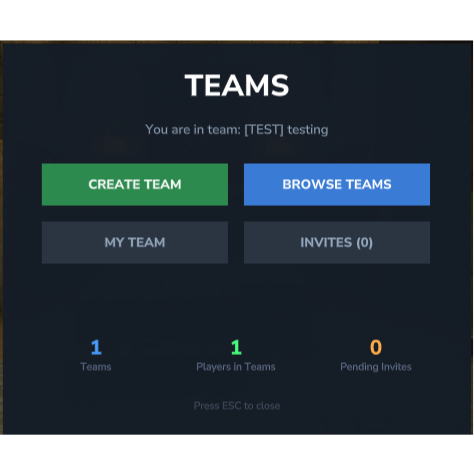
Players can create, manage, and join teams with a full GUI and command system.
Creating a Team:
/teamcreateor the GUI "Create Team" button opens a form where you set a team name, tag (short abbreviation), and choose from 20 colors via a color picker grid.- Teams start as open (anyone can join) or closed (invite-only), configurable in settings.
Browsing & Joining Teams:
/teamlistor "Browse Teams" in the GUI shows all teams on the server with their name, tag, member count, open/closed status.- Open teams have a "Join" button. Closed teams require an invite.
- Each team can also be viewed for more details via the "View" button.
Team Info Page:
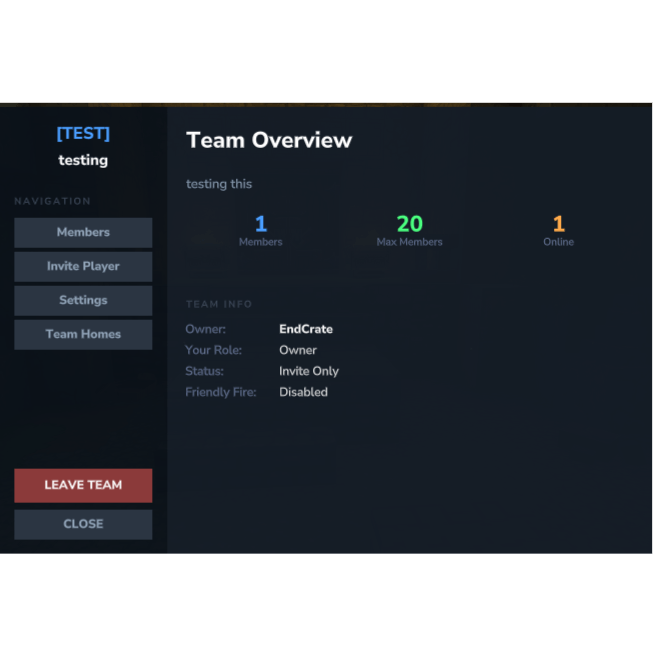
- Shows the team name, tag, color swatch, member count, and open/closed status.
- Sidebar navigation with: Members, Settings (owner only), Team Homes (owner only), Leave, and Invite (owner only).
Member Management:
- The Members page lists all members with their role and username.
- Owner can promote members to Officer, demote Officers back to Member, and kick anyone.
- Officers can kick Members.
- Roles: Owner (gold), Officer (blue), Member (gray).
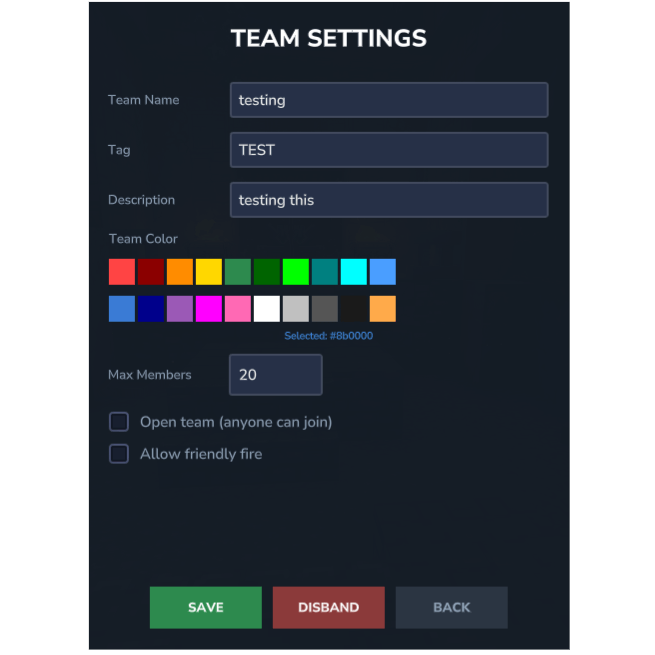
Team Settings (Owner Only):
- Change team name, tag, open/closed status.
- Full 20-color picker grid to change the team color.
- Disband the team entirely.
- Form fields are preserved when switching colors (no wipe on rebuild).
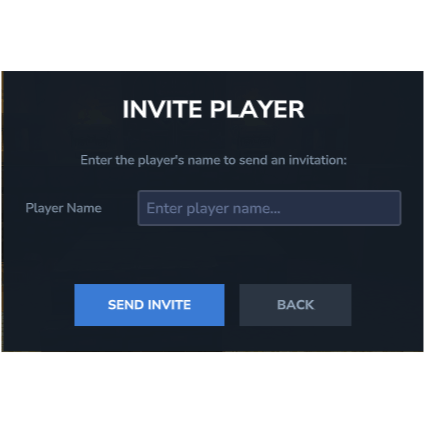
Invitations (Owner Only):
- /teaminvite <player> or the GUI invite button sends an invite.
- Invites expire after a set time.
- Invited players see pending invites via /team → "My Invites" with Accept/Decline buttons and a countdown timer.
Chat Integration
- Team Tag in Chat: When a player in a team sends a message, their team tag appears before their name in the color the team chose (e.g., a green
[ABC]prefix). - Team Chat: Typing
@t <message>sends a private message only visible to teammates, with a bold colored tag prefix.
Home System (Owner Only)
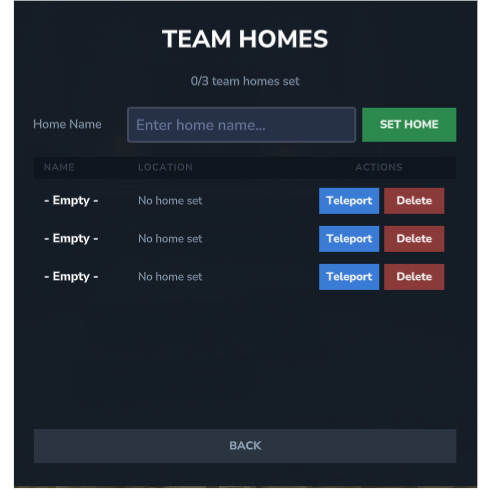
- Accessible from the Team Info sidebar → "Team Homes".
- Up to 3 homes per team, stored under the team's UUID.
- Set Home: Type a name in the input field and click "Set Home" — saves your current position.
- Teleport: Click the "Teleport" button next to any saved home to warp there.
- Delete: Remove a home with the "Delete" button.
Commands
| Command | Description |
|---|---|
| /team | Opens the main Teams GUI menu |
/teamcreate |
Opens the team creation GUI |
/teamlist |
Opens the Browse Teams GUI |
/teaminfo |
Shows your current team's info GUI |
| /teaminvite <player> | Invite a player (owner only) |
| /teamjoin <team> | Join an open team by name |
/teamleave |
Leave your current team |
| /teamkick <player> | Kick a member (owner/officer) |
| /teampromote <player> | Promote to Officer (owner only) |
| /teamdemote <player> | Demote to Member (owner only) |
/teamdisband |
Disband the team (owner only) |
/teamchat <msg> |
Send a team-only message |
/sethome <name> |
Set a home at current location |
/home <name> |
Teleport to a saved home |
/delhome <name> |
Delete a saved home |
/homes |
List all your saved homes |
Technical Details
- All data persists to JSON files (teams.json,
homes.json) in the server's mods directory. - GUI pages are built with Hytale's custom UI system (.ui templates + InteractiveCustomUIPage Java classes).
- Dynamic rows (team lists, member lists, invite lists) are rendered via appendInline with fully inlined styles.
- Event listener hooks into
PlayerChatEventfor tag display and team chat, andPlayerConnectEvent/PlayerDisconnectEventfor online status tracking.
The Easy Teams Team