PlayerHeight1a.jpg
PlayerHeight4.jpg
Description
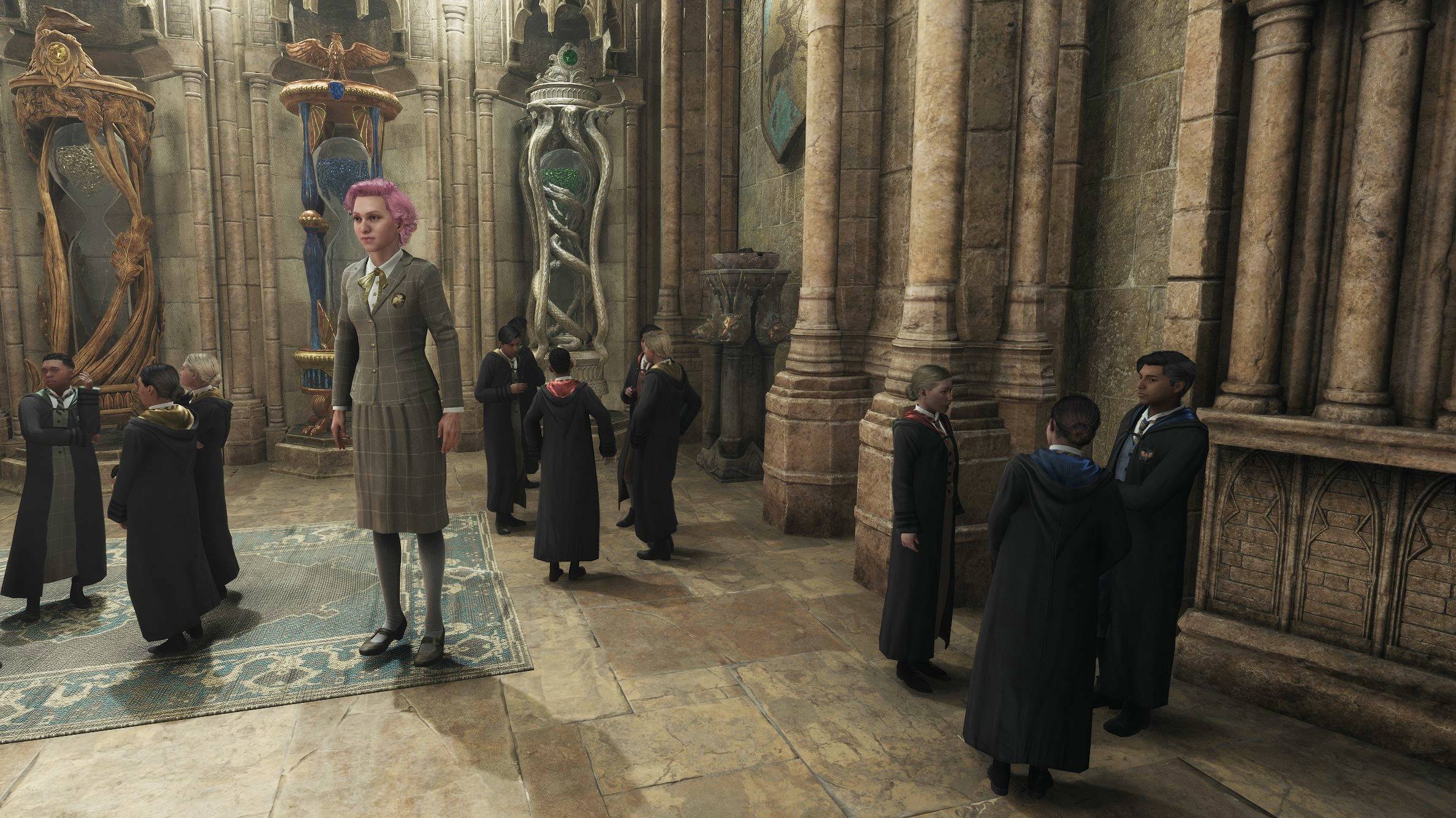
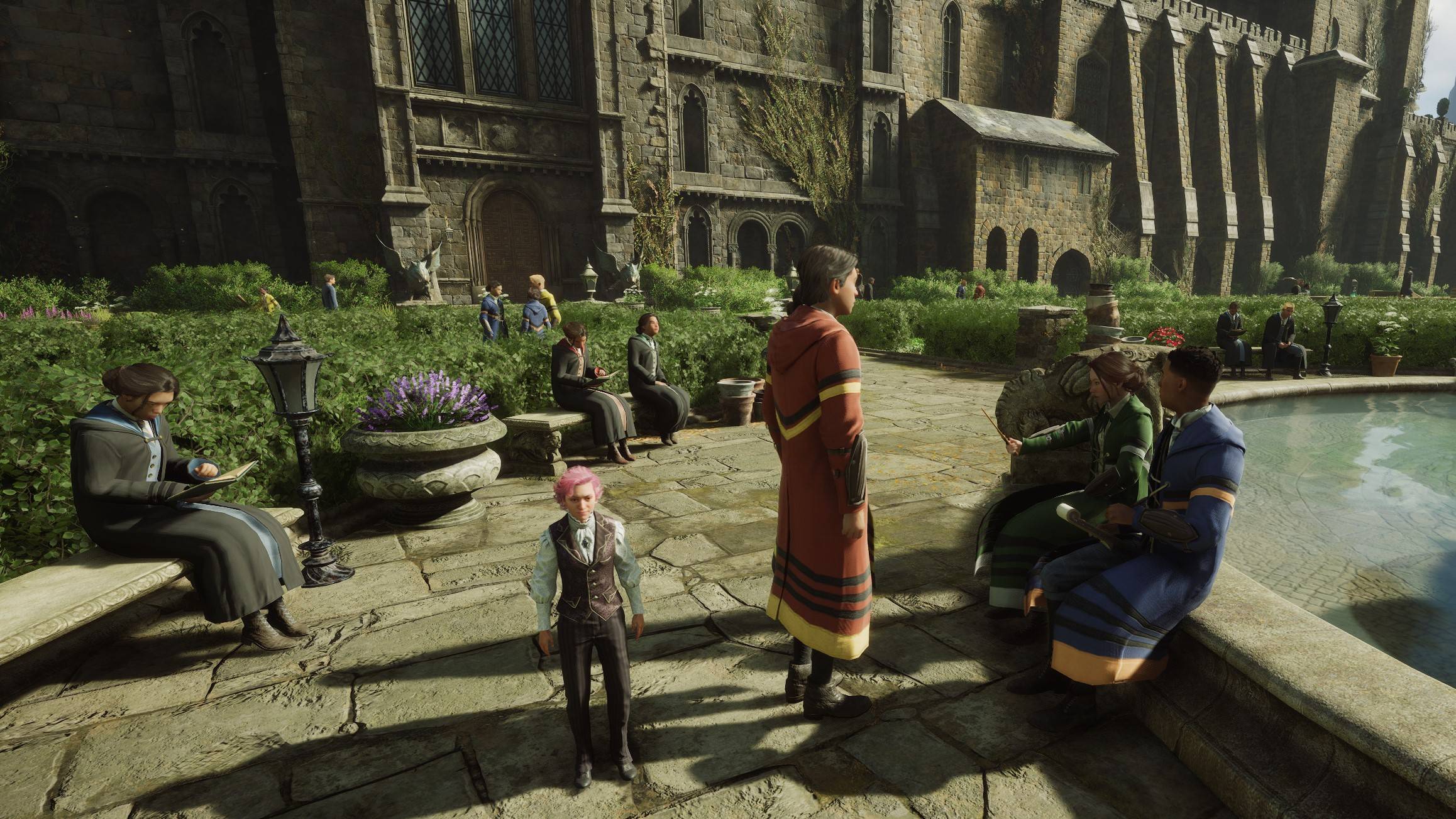
The main character's height and head size can be adjusted up or down (in steps of 2%) to achieve whatever height or head size you want. Your chosen height and head size setting is preserved when you fast travel or load a game. Notes:
- - The mod is typically disabled until you complete the Gringotts quest, but you can over-rule this via the "Force Enable" keybind.
- - If you do enable it, make sure you disable it again before you exit the Gringotts mine cart or you'll trigger a game bug and fall into the abyss.
- - Some cutscenes don't work very well when the player is the wrong size, so I have included a feature to automatically scale the player back to normal size for cutscenes. You can turn this feature on/off.
- - Cloth physics doesn't work very well at very small player sizes.
- - When you mount a broom the game (not my mod) changes your size to the default. Fortunately it changes back when you dismount.
- - Riding a Hippogriff / Graphorn / etc may look weird if you're particularly large or small. I can't fix this.
- - At very small player sizes enemy spells can send the player flying off into the sky. This is an Engine fault which I can't fix.
- - Cloth physics might or might not freak out with modded clothes. Try it and see!
- - Modded clothes might or might not clip with certain player sizes. Try it and see!
By default this mod uses the following key bindings. (You can increase or decrease height or head-size as many times as you like.)
- ALT-NUMPAD8 = Increase player height by 2%.
- ALT-NUMPAD5 = Reset the player height to default.
- CTRL-NUMPAD5 = Display the current player height multiplier.
- ALT-NUMPAD2 = Decrease player height by 2%.
- NUMPAD5 = Toggle cutscene rescaling on/off. On (or "true") means the player will be rescaled to default height during cutscenes.
- CTRL-ALT-NUMPAD5 = Toggle "Force Enable" on/off. On (or "true") means the mod will be forcably enabled before the Gringotts quest.
- ALT-NUMPAD9 = Increase player head by 2%.
- ALT-NUMPAD6 = Reset the player head to default.
- CTRL-NUMPAD6 = Display the current player head multiplier.
- ALT-NUMPAD3 = Decrease player head by 2%.
The key bindings can be changed by amending this file:
- C:\Users\YourUserName\AppData\Local\Hogwarts Legacy\Saved\Config\WindowsNoEditor\Input.ini
Change the True/False/Key=Whatever parts of these lines:
- +ActionMappings=(ActionName="PlayerHeight_Decrease",bShift=False,bCtrl=False,bAlt=True,bCmd=False,Key=NumPadTwo,GroupName="",SortIndex=0)
- +ActionMappings=(ActionName="PlayerHeight_Display",bShift=False,bCtrl=True,bAlt=False,bCmd=False,Key=NumPadFive,GroupName="",SortIndex=0)
- +ActionMappings=(ActionName="PlayerHeight_Increase",bShift=False,bCtrl=False,bAlt=True,bCmd=False,Key=NumPadEight,GroupName="",SortIndex=0)
- +ActionMappings=(ActionName="PlayerHeight_Reset",bShift=False,bCtrl=False,bAlt=True,bCmd=False,Key=NumPadFive,GroupName="",SortIndex=0)
- +ActionMappings=(ActionName="PlayerHeight_CutSceneRescale",bShift=False,bCtrl=False,bAlt=False,bCmd=False,Key=NumPadFive,GroupName="",SortIndex=0)
- +ActionMappings=(ActionName="PlayerHead_Decrease",bShift=False,bCtrl=False,bAlt=True,bCmd=False,Key=NumPadThree,GroupName="",SortIndex=0)
- +ActionMappings=(ActionName="PlayerHead_Display",bShift=False,bCtrl=True,bAlt=False,bCmd=False,Key=NumPadSix,GroupName="",SortIndex=0)
- +ActionMappings=(ActionName="PlayerHead_Increase",bShift=False,bCtrl=False,bAlt=True,bCmd=False,Key=NumPadNine,GroupName="",SortIndex=0)
- +ActionMappings=(ActionName="PlayerHead_Reset",bShift=False,bCtrl=False,bAlt=True,bCmd=False,Key=NumPadSix,GroupName="",SortIndex=0)
- +ActionMappings=(ActionName="PlayerHeight_ForceEnable",bShift=False,bCtrl=True,bAlt=True,bCmd=False,Key=NumPadFive,GroupName="",SortIndex=0)
If the above lines don't exist, add them.
Player Height Team

Owner