
TK Profession Items
- By
1.png
Description
TK Profession Items
Use all your profession knowledge items, surplus reagent bags and crafting-order rewards from one button, instead of hunting through your bags for them.
Crafting orders and profession activities in Midnight hand you a steady trickle of small items: Thalassian Treatises, profession notebooks and journals, Master's Surplus Reagents bags, Artisan's Consortium Payouts, one-time knowledge treasures, and items that only work once you hold five of them. Each one has to be found in your bags and right-clicked. If you miss one, you're leaving Knowledge Points or reagents unused.
TK Profession Items collects all of them into one small window and gives you a single button. Click it, and it uses the next item. Click again, and it uses the one after that. When there's nothing left to use, the window closes by itself.
What it's like in game
You finish a run of crafting orders and your bags now hold a Master Tailor's Surplus Reagents bag, an Artisan's Consortium Payout, two Thalassian Treatises on Tailoring and a Thalassian Tailor's Notebook. The TK Profession Items window opens on its own, showing all of them:
- The big button shows the Surplus Reagents bag first. Click: the bag opens and the reagents go into your bags.
- The button now shows the Consortium Payout. Click: it opens.
- Next, the Treatise. Click: you study it and gain Knowledge.
- Then the Notebook. Click, and you're done. The window closes.
You never opened a bag or searched for an icon. If you bind a key to it, you can do all of that by tapping one key four times.
Features
One button for everything
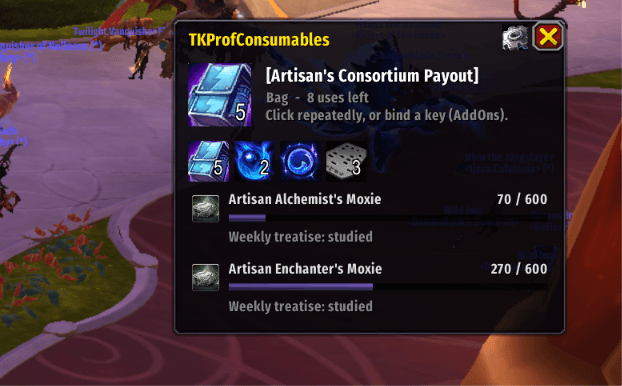
- A large button always shows the next item to use, with its name and whether it is a bag or a knowledge item.
- Bags are used before knowledge items, because bags often contain more treatises or notes. Those get picked up straight away.
- A row of small icons below shows every item it found (up to 24), with stack counts and cooldowns. Click any icon to use that particular item instead of the next one.
- Key binding: under Key Bindings > AddOns > TK Profession Items you can bind "Use next profession consumable" to any key, then empty the whole queue by pressing that key repeatedly.
Knows the Midnight profession items out of the box
Built in, by item ID, so it works on any game language:
- All eleven Master's Surplus Reagents bags (Alchemist, Smith, Enchanter, Engineer, Herbalist, Scribe, Jewelcrafter, Leatherworker, Miner, Skinner, Tailor)
- Artisan's Consortium Payout (Midnight and The War Within)
- Thalassian Treatises for all eleven professions
- Thalassian notebooks, journals and notes (Alchemist's Notebook, Blacksmith's Journal, Engineer's Notepad, Scribe's Journal, Enchanter's Folio and the rest)
- Combine-5 crafting-order items: Multicraft Matrix and Resourceful Rebar
It also recognises one-time knowledge treasures (items like Haranir Leatherworking Mallet or Amani Expert's Chisel). It reads their "Study to increase your … Knowledge" text, so new ones are found without an update.
Learns new items by itself
When you complete a crafting order, or open a profession bag from the window, TK Profession Items watches what arrives in your bags. Anything new that can be used or opened is remembered from then on. A chat message tells you what it learned. Gear and plain crafting reagents are not learned.
Waits for "needs 5" items
Items like the Multicraft Matrix say "Combine 5 … to create …". While you hold fewer than five, the icon is greyed out and its tooltip says "needs 5, you have 2". It isn't counted as usable and doesn't open the window. Once you reach five, it becomes usable automatically.
Skips what you can't use, instead of getting stuck
- An item whose tooltip shows a requirement you don't meet (another profession's treatise, for example) is greyed out and skipped, so the button moves on to something you can use.
- If the game refuses an item twice in a row with the same message (for example, a treatise you've already studied this week), it's set aside until you have more of it. The button never gets stuck clicking something that won't work.
- Hover any greyed icon to see exactly why it's skipped.
Never touches the wrong things
The button will never use pets, mounts, toys, housing decor, potions, elixirs, flasks, phials or recipes, and it leaves anything you could sell on the auction house alone. A tradeable consumable that comes out of a profession bag, such as a Void-Touched Augment Rune, stays in your bags for you to sell. This holds even if a crafting order hands you one, and even if you try to add one by hand. It goes by Blizzard's own item types, so a flask can't sneak into the queue.
Tells you when your Moxie buys a surplus bag
The window always shows your Artisan Moxie for both of your professions, for example Artisan Enchanter's Moxie 412 / 600 with a bar filling up.
600 Moxie buys your profession's Master's Surplus Reagents bag from the profession vendors in Silvermoon City. When you reach 600, that line turns gold and reads "Surplus bag ready - Silvermoon City". Chat tells you once, and the window opens by itself even if you have nothing else to use. Hover the line to see exactly which bag it buys. With 1,200 or more, it tells you how many bags you can buy.
Weekly treatise reminder
Each Thalassian Treatise can be studied once a week. Each profession line in the window says "Weekly treatise: studied" or "Weekly treatise: not studied", and adds (in bags) when you're carrying one. If you haven't studied this week, chat reminds you once when you log in. A treatise you've already studied is greyed out as "already studied this week" until the weekly reset, so the button never offers it.
Options panel
The gear button on the window (or /tkp options) lists everything you've added, everything it has learned and everything you've ignored, each with a Remove button. Learned items can be moved straight to ignored. It also has the switch for opening the window automatically.
Stays out of your way
- The window opens by itself when there's something to use and closes itself when you're done.
- Close it with the X and it stays closed until a new item arrives. It won't keep popping back up for items you've already seen.
- Drag it anywhere. It remembers its position.
- In combat it never changes or moves. Anything that arrived during the fight shows up as soon as combat ends.
Commands
/tkp: show or hide the window/tkp why <shift-click item>: explains why an item is or isn't picked up, and prints its tooltip text if nothing matched/tkp add <item>: always treat an item as a profession consumable/tkp ignore <item>: never use an item (or shift-right-click its icon)/tkp remove <item>: take an item off your add/ignore lists/tkp list: list everything queued, skipped, learned, added or ignored/tkp retry: give skipped items another chance/tkp autoshow: turn automatic opening/closing on or off/tkp reset: move the window back to the middle of the screen
Good to know
- One click per item. World of Warcraft allows an addon to use only one item per click or key press, so no addon can use everything in a single click. TK Profession Items makes each click count by always lining up the next item.
- Languages. The built-in item list works on every client language. Recognising new items by their tooltip text currently works on English clients. On other languages, use
/tkp addfor anything it misses. - Feedback and item suggestions are welcome in the comments. If an item is missed,
/tkp why <item>gives exactly the details needed to add it.
TK Profession Items Team
