


AzIO - Audio Switcher Widget
- By
A compact on-screen widget for switching your audio output device and adjusting game volume in one click, with no digging through the Sound settings.
azio-ss-1.png
azio-ss-2.png
azio-ss-3.png
Description
Your game audio controls, one click away.
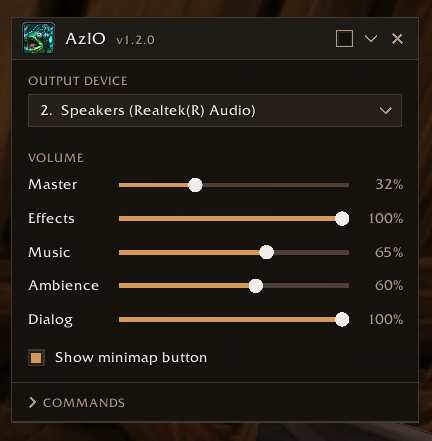
Changing your output device or volume in WoW normally means pressing Escape, opening Options and digging through the Sound settings. AzIO puts those controls in a small widget you can leave on screen or open whenever you need it.
Made for WoW Forever.
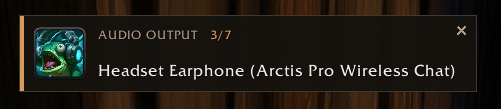
- Switch output device: press Numpad * to cycle between speakers, headphones and other devices, or pick one from a dropdown. A small popup shows which device you're on.
- Adjust volume: sliders for Master, Effects, Music, Ambience and Dialog.
- Skip devices you don't use: untick them in the dropdown and cycling leaves them out.
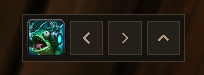
- Compact mode: shrink the window to a small bar with previous and next buttons.
- Custom colour: tint the window to any colour.
- Minimap button: left-click opens the window, right-click switches to the next device.
- Remembers your setup: its position, mode and settings are kept between sessions.
AzIO changes WoW's own Output Device and volume settings, the same ones as in the game's Sound options. It doesn't touch your Windows audio settings or other programs. The game's sound restarts briefly when you switch device.
| Command | What it does |
|---|---|
| Numpad * | Switch to the next device |
/azio |
Show or hide the window |
/azio <n> |
Switch to device <n> |
/azio skip <n> |
Skip or include device <n> when cycling |
/azio next / /azio prev |
Switch to the next or previous device |
/azio list |
List all devices with their numbers |
/azio show |
Show the popup for the current device |
/azio compact |
Switch between full and compact mode |
/azio minimap |
Show or hide the minimap button |
/azio bind |
Bind Numpad * to AzIO if another action is using it |
/azio timeout <sec> |
How long the popup stays up (0 = until you close it) |
/azio help |
Print the commands in chat |
The key can also be changed in Key Bindings → AddOns → AzIO.
Copy the AzIO folder into Interface\AddOns in your WoW Forever install, then /reload.
AzIO - Audio Switcher Widget Team
