Dino Party HUD
- By
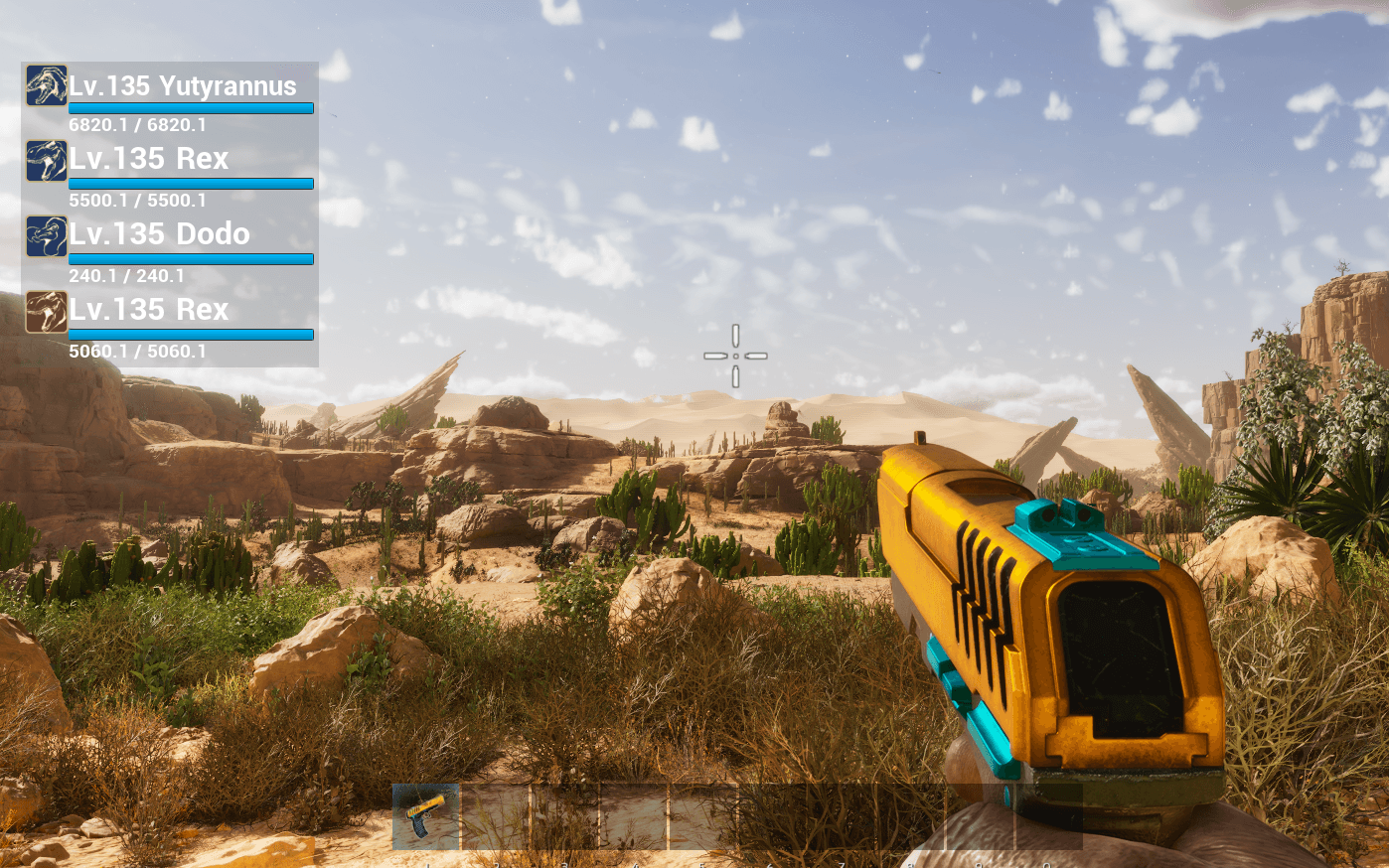
HUD.png
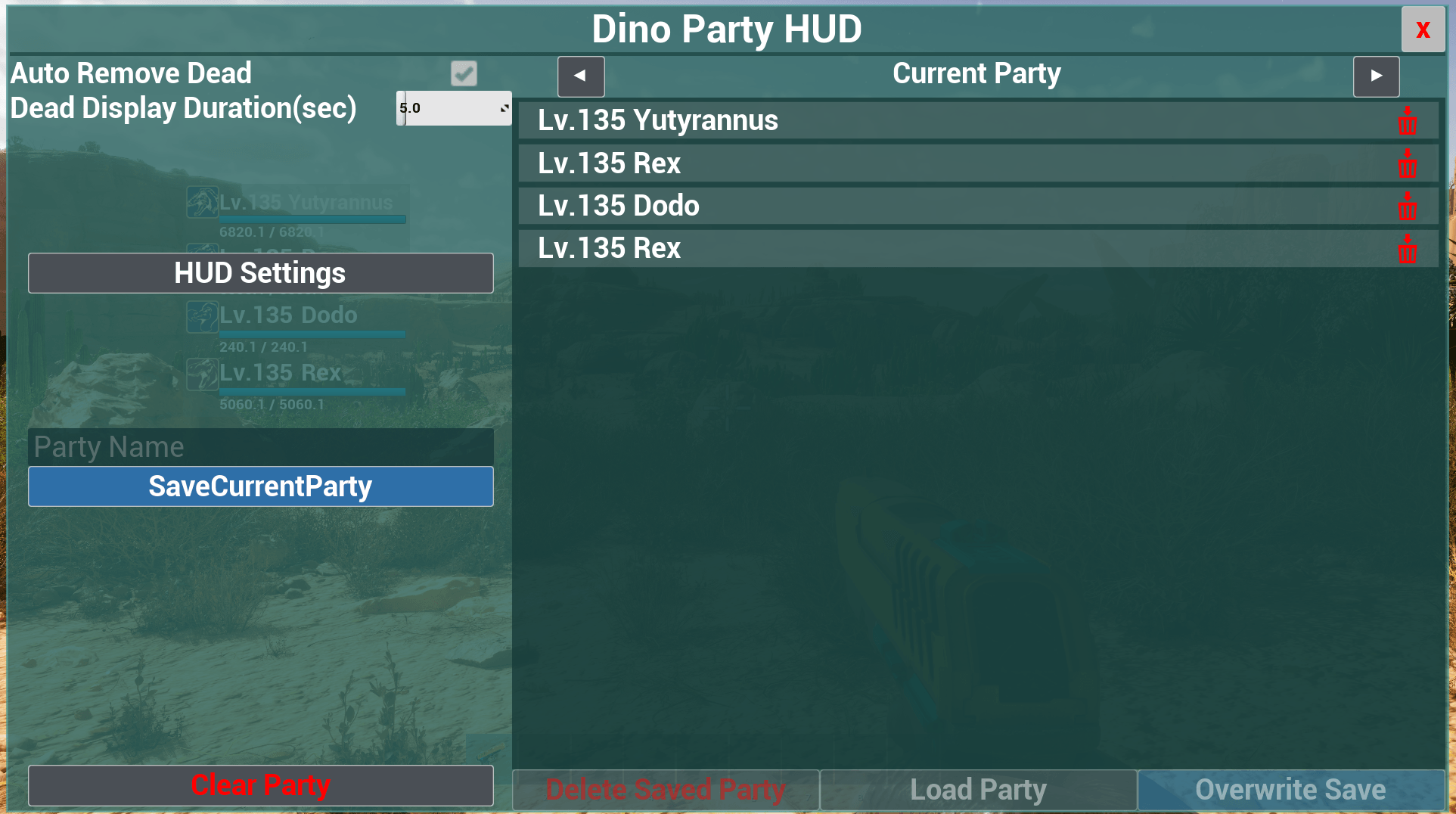
Settings.png
Description
Dino Party HUD
Keep track of your tamed dinosaurs with a customizable party HUD.
Use the Dino Party Selector to add dinosaurs to your current party, monitor their status, and organize saved party presets.
Features
- View party members’ names, levels, and health.
- Display target information while aiming with the selector.
- Save and load multiple named party presets.
- Drag and drop members to reorder your current party.
- Customize HUD position, size, text, and dinosaur icons.
- Configure automatic removal of dead party members and the delay before removal.
Getting Started
-
Learn the Dino Party Selector engram.
-
Craft the selector in your inventory using 1 Fiber.
-
Equip it and aim at a tamed dinosaur.
-
Use the selector’s primary action to add or remove the dinosaur.
-
Open the selector’s radial menu to access party settings.
Party Settings
Current Party
Manage the dinosaurs displayed on your HUD.
- Drag a member row up or down to change its position.
- Use the trash icon to remove an individual member.
- Use Clear Party to remove all members from the current party.
- Removing a dinosaur from the party only removes its HUD entry. It does not delete or release the dinosaur.
Saved Parties
Enter a party name and select Save Current Party to create a preset.
Use the arrows to browse your saved parties, then:
- Load Party — Replace the current party with the selected preset.
- Overwrite Save — Update the selected preset with your current party.
- Delete Saved Party — Remove the selected preset.
Dead Members
- Auto Remove Dead — Automatically remove confirmed dead dinosaurs from the current party.
- Dead Display Duration — Set how long dead members remain visible before automatic removal.
HUD Settings
Open HUD Settings to adjust the party display.
- Reposition the HUD by dragging it while editing.
- Adjust HUD width and text sizes.
- Adjust health bar and icon size.
- Show or hide health text and dinosaur icons.
- Changes are previewed while editing.
- Save — Keep your changes.
- Cancel — Restore the settings from before editing.
- Reset — Return to the default settings.
Saving and Availability
Party data and HUD settings are saved locally and separated by player account, server name, and map.
A member may appear as Unavailable when its dinosaur cannot currently be resolved by the client, such as when it is outside the loaded area. This does not necessarily mean the dinosaur is dead.
Compatibility
PC Single-player and multiplayer
Dino Party HUD Team