Better Enderchest v1.3 (26.2) | Enderchest GUI Datapack | Shop, Post, Level & even more! | REWORKED POST MENU
- By
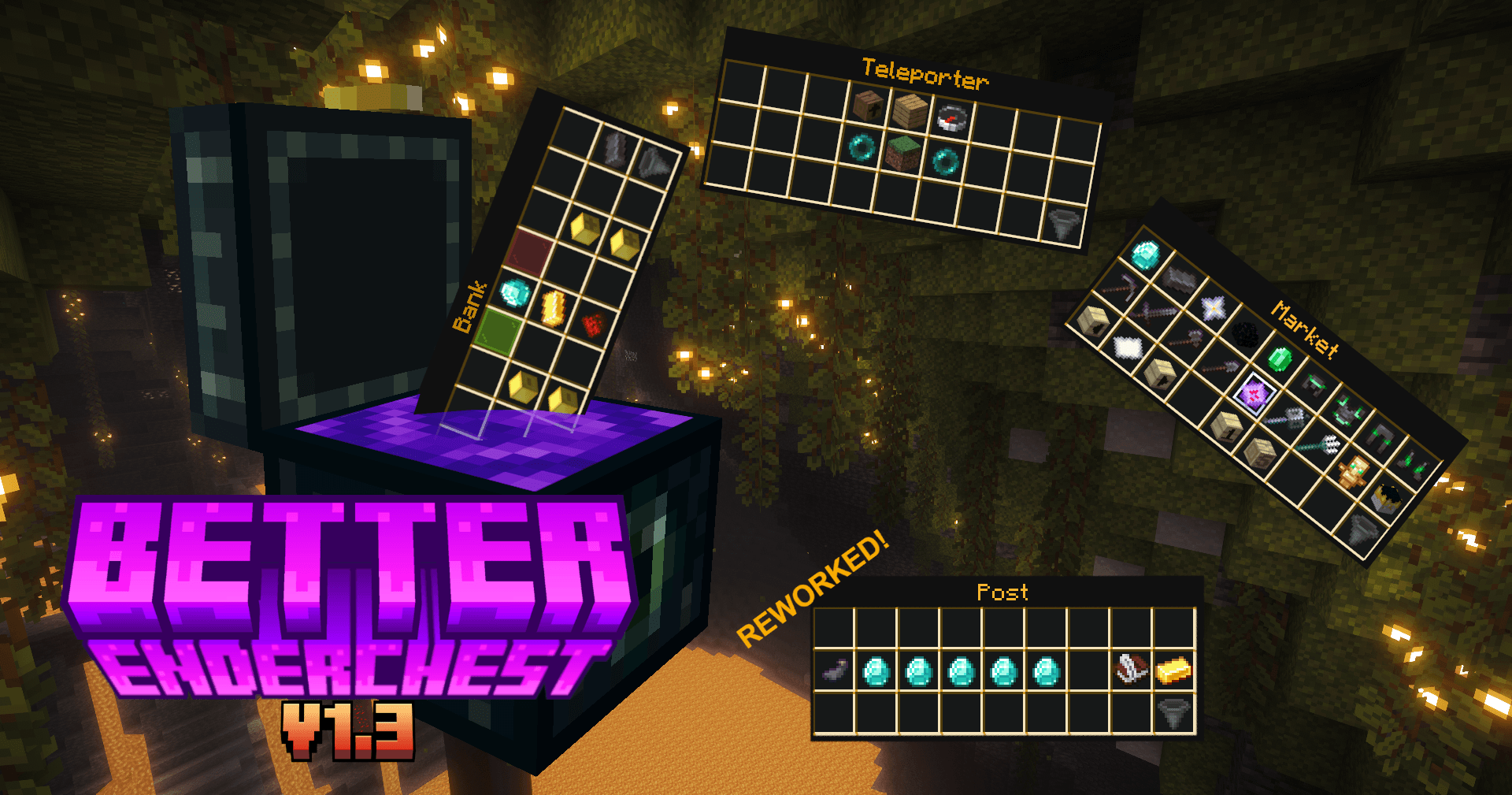
Better Enderchest v1.3.png
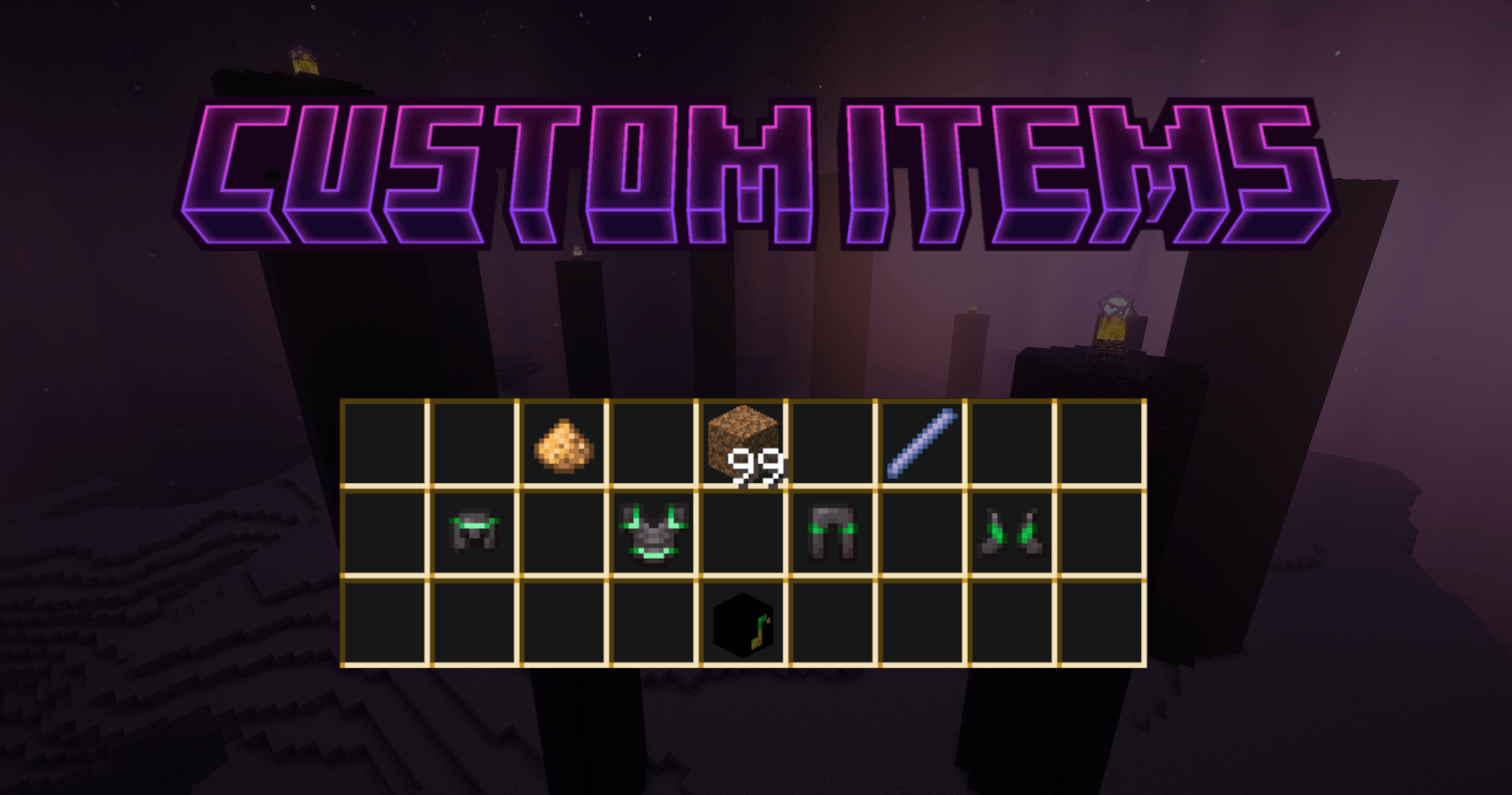
custom_items.png
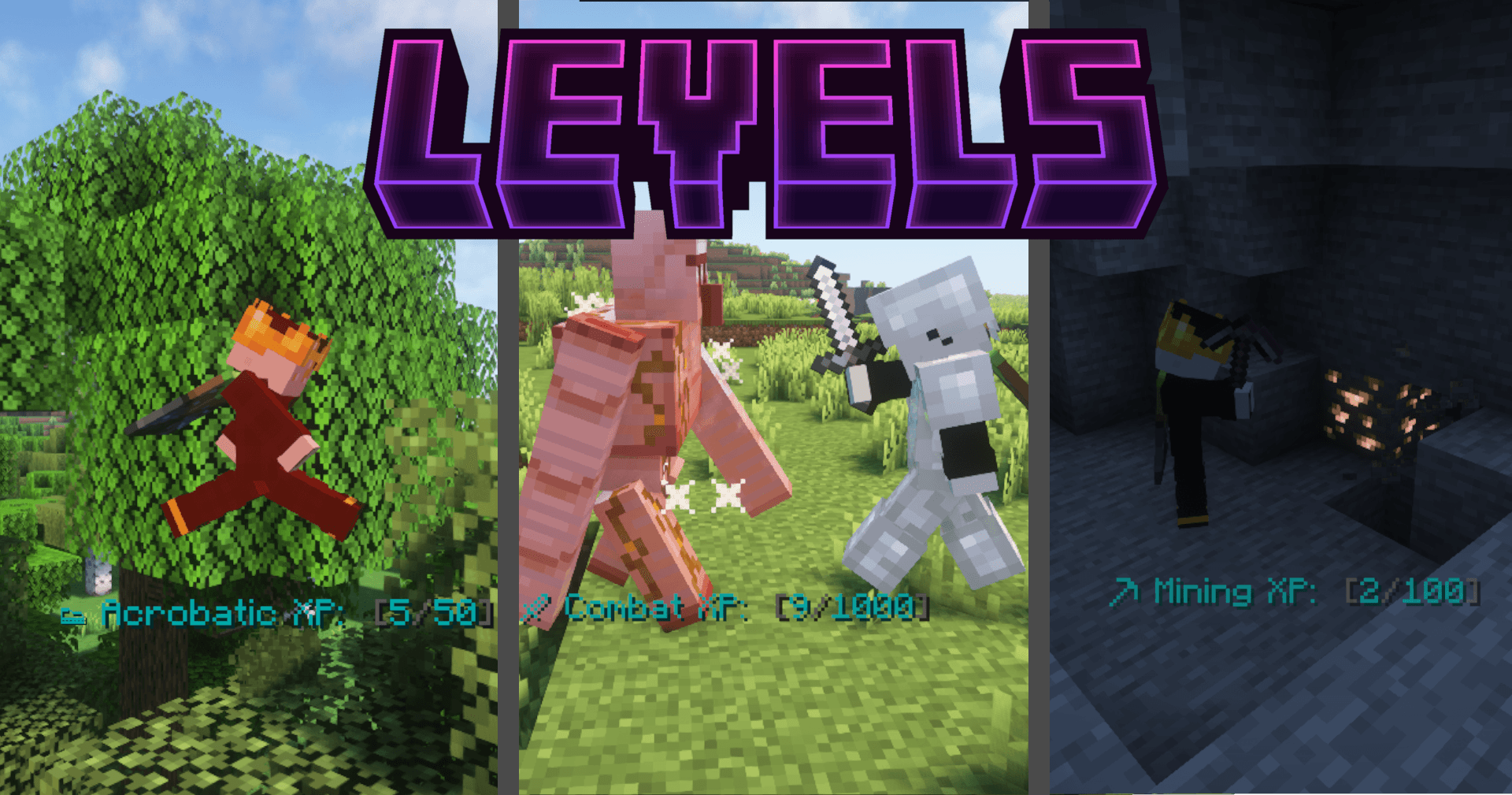
levels.png
Description

Have you ever wanted to set up a server or just a survival world, but you just were to lazy to implement several Datapacks for Shop, Bank or Post Systems. Well you are lucky then because Better Enderchest has all of it and way more. Everything is compact and easy to acces in your Enderchest!
This pack is still under development; although this is the base version, there will be more content released soon. I have plans for different new menus.
Please consider providing feedback and report any bugs in the comments. You can also contact me via Discord (name: sturmbueffel100).
This pack has been properly tested in both singleplayer and multiplayer, but I can't completely guarantee that there are no bugs in the event of a series of unfortunate occurrences. If you have questions regarding bugs or other flaws in the pack, I would love to help you out!
For more GUI-based Data Packs check out RabenMeister's incredible Simple Command GUI Datapack.
In July of 2026 I got some new ideas, which I partially added during my summer break. I unfortunatly won't have enough time in the next month to develop the pack further, so I decided to split the update into multiple parts. Here is the first one. Enjoy!
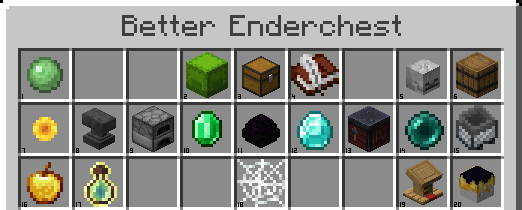
The main objective of this pack is the Enderchest, which you can now craft using just a chest and an ender pearl. It can be mined with any tool and provides 21 different menus and tools for both the regular player and the server operator.
Enderchest Opened: 8,740 (8,129 in v1.2)
Scoreboards: 164 (162 in v1.2)
Time since first line of code on 9th August 2024: 736d (517d in v1.1)
Number of Files: 813 (849 in v1.2 I deleted a lot of old files)
Number of Folders: 119 (109 in v1.2)
Lines of Code: 15,585 (17,253 in v1.2 again i reworked a lot)
(15th July 2026)
The Shulker Box Loader is usually turned off due to its experimental nature. Unfortunately it destroys some blocks at Y-level 300 above your location.
If you'd like to use it despite these limitations, you can enable it by going to the Layout Tab in the OP Settings.
To use the Shulker Box Loader, simply place a Shulker Box into the designated slot. You'll hear a sound once it's ready. You can then place any item in the box, including other Shulker Boxes.
However, be aware that any items placed in the two slots at the bottom right of the box will drop when you open it in your Ender Chest.
You can also import an Enderchest Page by inserting an empty shulker and then clicking the top right button. The selected Enderchest Page will clear when you take out the shulker.
Politely ask another player if they can provide you with their address. They then need to click the "Write Address Ink Sac" with a paper and hand you the address. You then open the send mail menu. With the address, you click the "Select Receiver" button. Five slots beside the paper should show up now. If there are still items left in the mailbox, these slots will be blocked. Place your items and click "Send Mail"; this will cost you some money.
Short:
1. Ask for the address.
2. Select receiver.
3. Place the items.
4. Send the items.
You can also send money by selecting the amount before sending the mail.
You receive a message whenever someone sends you items or money. In your Mailbox, you'll see a button:
1. Collect Money: This button allows you to collect any money that has been sent to you.
Important Note: When you leave your Mailbox, all items inside will drop. This means you cannot store items in your Mailbox.
The Casino doesn't use your actual money, so you can't gamble more than you want to risk. First, you need to add money to the Pot. Then you can choose one of three gambling methods:
- Double or Nothing: As the name suggests, you can either double your money or lose everything. The odds of doubling are 40%, while the odds of losing everything are 60%.
- Random Chest Loot Item: This option gives you a random item. From Dragon Egg to dirt, it can be everything.
- Lottery: It's a classic lottery! Each ticket costs €1000 and adds €800 to the pot. You have a 1 in 1000 chance to win the entire pot with each ticket you buy.
When you leave the casino, all the money in your Pot is transferred to your personal account.
The Shop is your main way to spend money. When opened, it displays your money in the action bar. There are eight different shops:
- Player Heads: Get some useful Player Heads you can use for decorating your world.
- Spawn Eggs: Buy Spawn Eggs from all kinds of creatures. You can also buy Spawners here by sacrificing one kind of Spawn Egg. If you want to buy a sacrificed Spawn Egg, you have to sacrifice the Spawner.
- Information: Buy the ability to display interesting pieces of information in your Actionbar. When all kinds of information are bought, you are able to enable everything at once.
- Enchantments: Buy Enchanted Books with higher levels than possible to obtain in Vanilla Minecraft.
- Effects: Never use a beacon again when you can buy permanent effects in your Ender Chest. Once bought, you can disable them with the command:
/trigger remove_effects. - Special Items: Troll your friends with cool new items.
- Materials: If you accidentally sell a valuable item, you can buy replacements as well as some special material called Mythril here.
- Sounds: Ever wanted to troll your friends by playing the sound of lava? Buy it here, place it on a Note Block, and enjoy scaring the hell out of them!
You can sell every item. Thank you to https://minecraft-economy-price-guide.net for the price data. You can sell your whole inventory (except your hotbar) by pressing the shown key.
Despite its name, it actually has nothing to do with the normal Smithing Table. Here, you can select an item and edit its name. Are you ever bored of your default italic, white Destroyer of Souls? That belongs to the past— Destroyer of Souls is the new trend!
I wonder if Mythril does something here too?
Note: Make sure you rename the item before editing it unless you want a nice blank name!
The Teleporter has three main teleporting options:
Highest Block: With this option, you can teleport to the highest block at your x and z position. With this tool, you can build hidden bases and other cool buildings.
Home: Set your home with /trigger set_home. Whenever you're on an adventure far away from home, you can teleport back to your base.
World Spawn: This option gives you the possibility to teleport back to the place where your journey once began.
There are also five empty slots for Teleport Points; the Server Operator can set these in the OP Settings.
As the Server Operator, use:
plaintext
/tag @s add ec_op
to gain operator rights. There are four types of Operator Settings.
Create a Custom Boss Bar
You can create a custom Boss Bar and modify its:
- Name
- Value
- Maximum Value
- Visibility
- And many more!
You can add up to five different points in the world by typing:
/trigger tpp set [point number]
You can modify the point's name by using a renamed item and even change the icon by placing an item on the Ender Pearl.
Creating Custom Teams
You can create custom teams with:
- Custom Names
- Prefixes
- Suffixes
- Colors
Important Note: You can't edit the team in your Ender Chest; therefore, use Minecraft's default team command.
Here you can see the items other players have sold. You have the discretion to purchase a single item or an entire stack at once. Swiftly navigate through the pages by pressing the corresponding number key. Should another player purchase an item you have sold, you will receive the funds upon opening your ender chest or rejoining the server.
Better Enderchest v1.3 (26.2) | Enderchest GUI Datapack | Shop, Post, Level & even more! | REWORKED POST MENU Team