


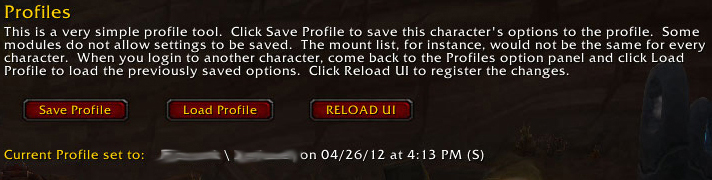
This allows you to save most of your settings to load into another toon.
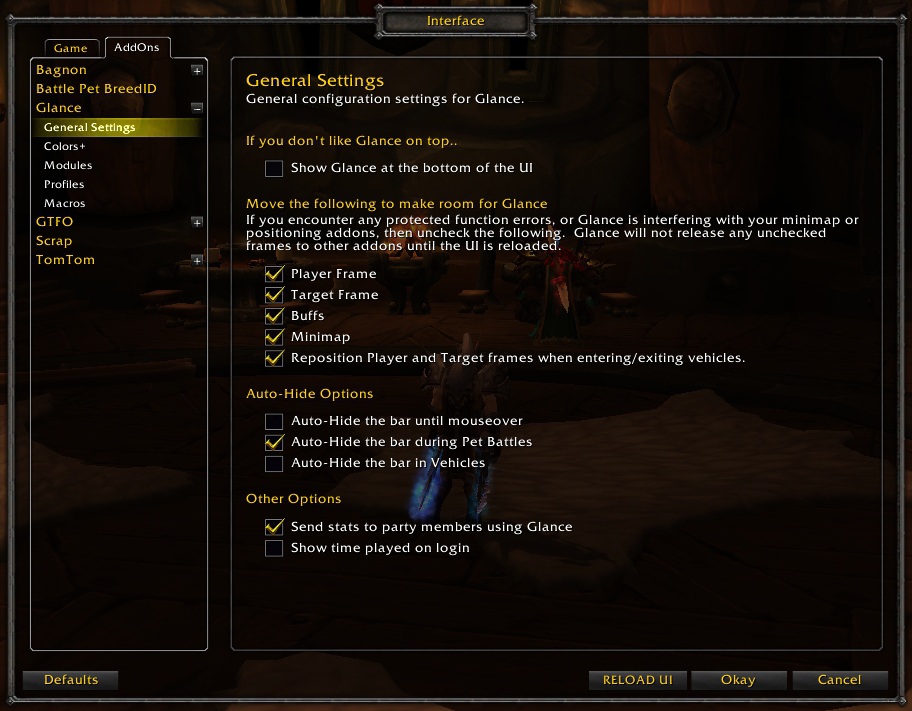
Interface Options for the bar itself.
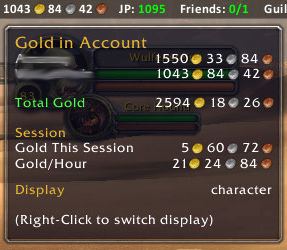
This shows you all your gold.
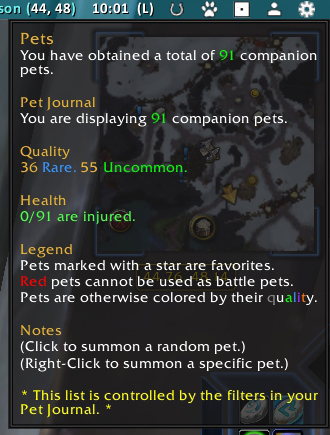
Displays number of pets collected, how many are injured.
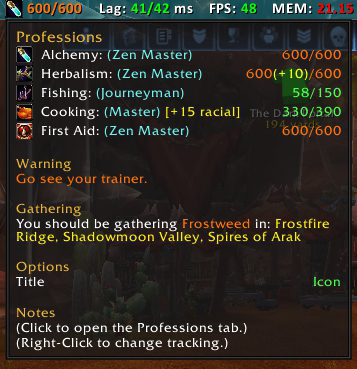
Displays professions level, colored orange when you need to train, tips on where to gather, racial bonuses, etc.
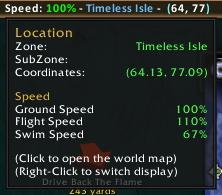
This displays where you are and how fast you are going.
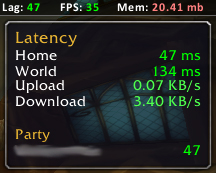
The Lag tooltip shows your current, minimum, maximum, and average latency.
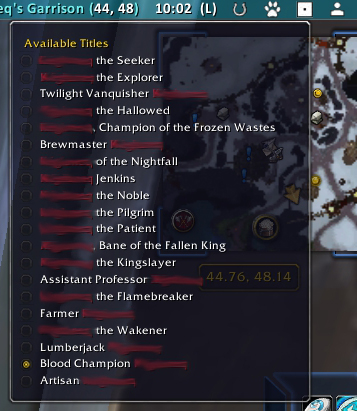
Select your title
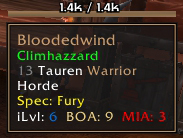
Displays: Spec, Item level, PVP (number of PVP items worn), BOA (number of heirloom gear worn), BAD (number of under level heirloom gear worn), MIA (number of missing gear)
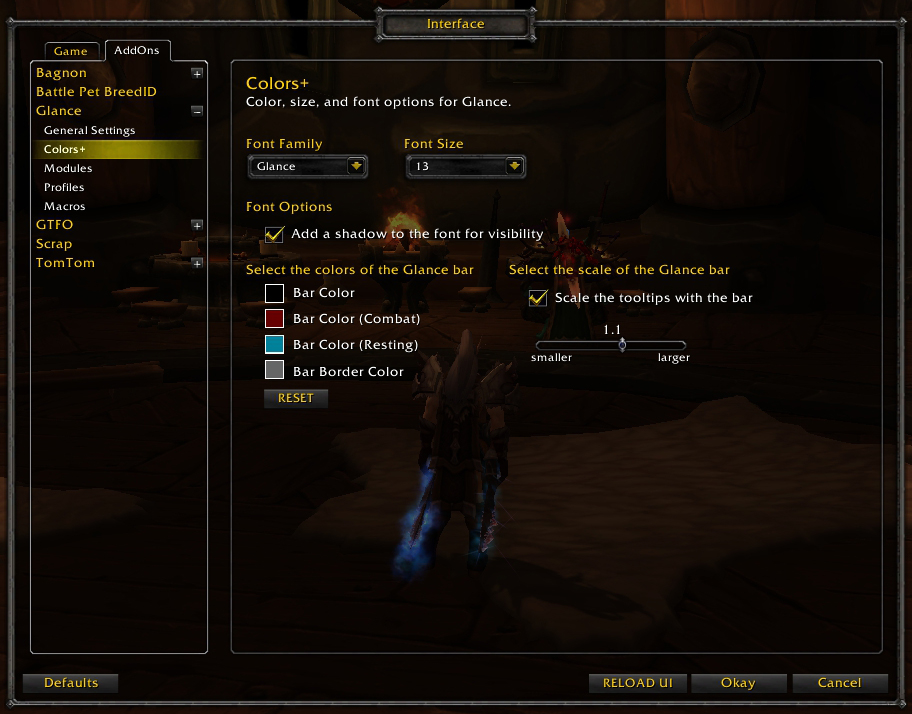
This lets you choose the font to use, and set default colors for the bar in normal, resting, and combat states.
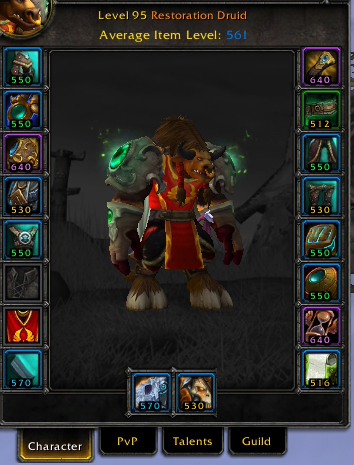
Item Level Overlays for each piece of gear
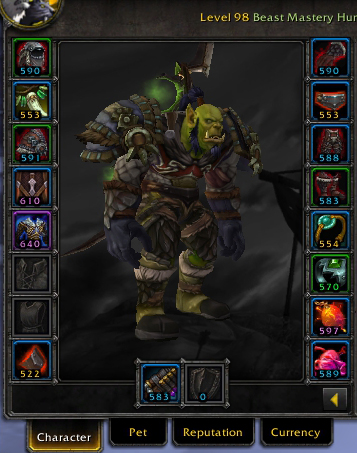
Item Level Overlays for each piece of gear
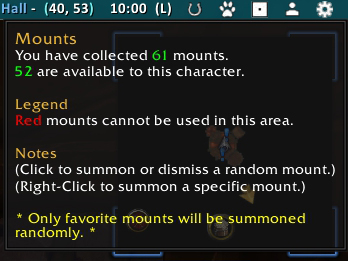
Displays number of mounts collected
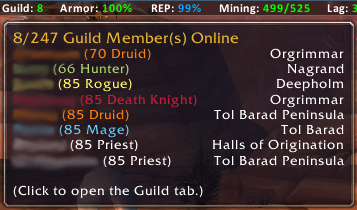
The guild tooltip shows you which of your guild members are online, their level, class, and location.
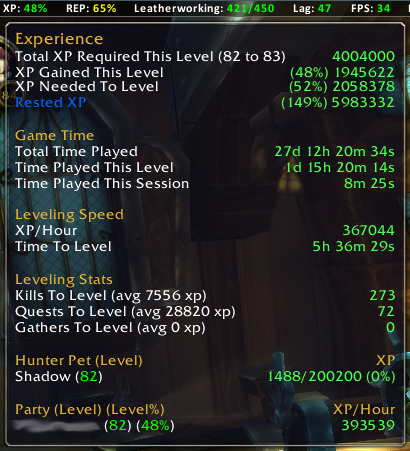
The XP tooltip displays your current, needed, and rested experience, how long it will take you to level, and how many kills/quests/gathers you need to level.
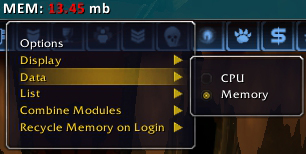
Here you can set how many addons to display, change tracking from MEMory to CPU, choose to combine all 500 of the Glance entries to one line, etc.
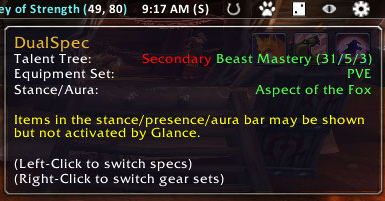
This shows your current spec, stance, and equipment set.
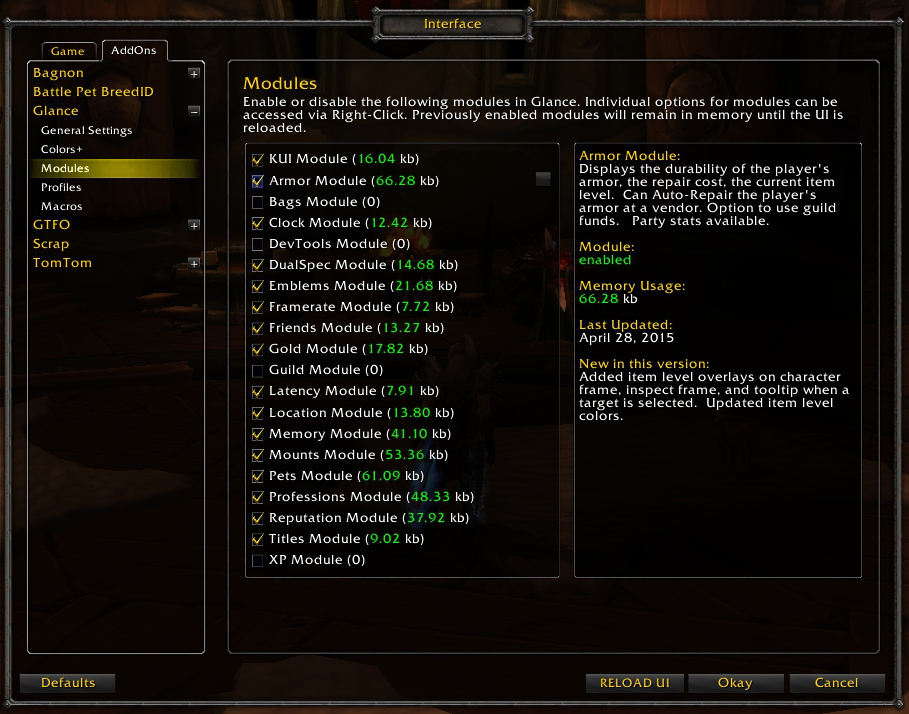
This lets you turn modules on or off.
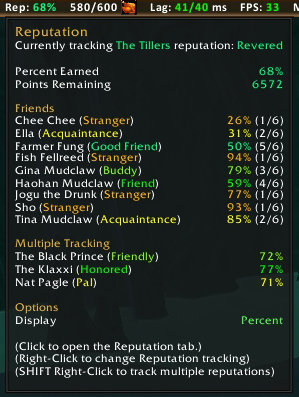
This shows you what reputation(s) you are tracking and how much remains to the next level.
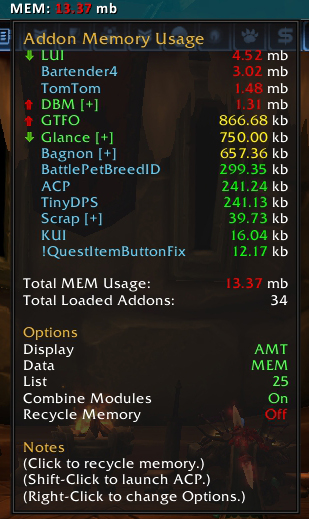
Sorted from high to low, colored by percentage of use, and arrows telling you if the memory usage is increasing or decreasing.
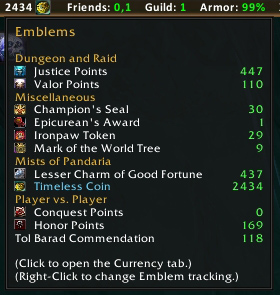
This shows you all your emblems and how many you have.
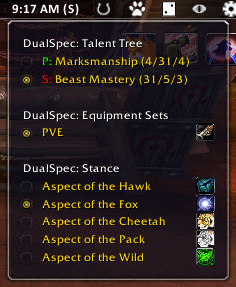
This allows you to set your spec and equipment set.
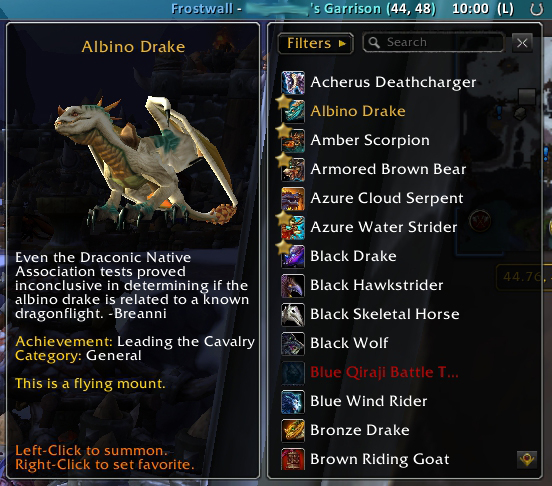
Displays mount, model, description, and source
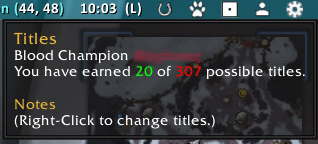
Displays your title and how many you have earned
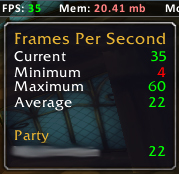
The FPS tooltip shows your current, minimum, maximum, and average frame rate.

The Glance Bar
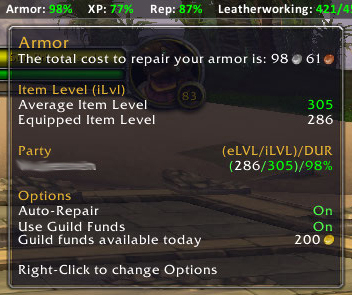
This shows how much it costs to repair, and your average/equipped item level.
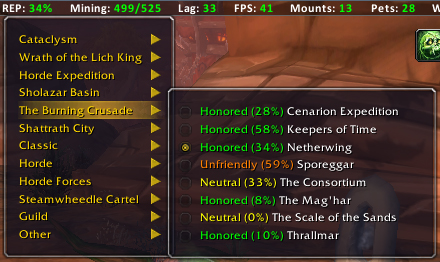
The reputation dropdown shows you what your reputation is with each faction. Select a faction to track it in the bar.
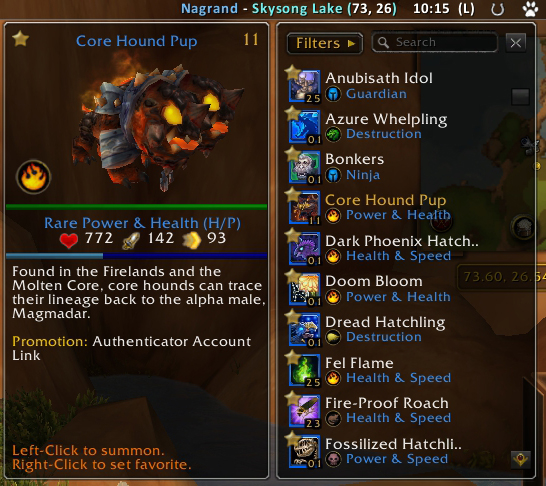
Displays name, model, level, health, xp, type, description, source, and breed.
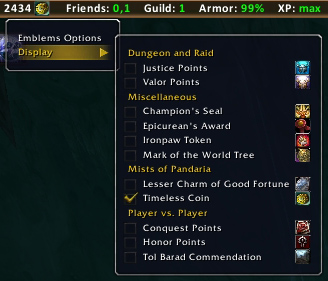
This lets you choose which emblems to display.
Description
News
- Works with WoW Classic!
- Works with WoW Retail!
About Glance
Glance is a modular information bar with many modules provided by default. Glance has been built from the bottom up to allow developers to create their own data brokers. Each module can be enabled or disabled via the user interface, or the Glance Interface Options panel. So use what you like, turn off what you don't, and let me know what else you'd like to see. I encourage you to read through this somewhat lengthy description, to see just what Glance is capable of.
New In This Release
- Updated to work with WoW Classic.
- Updated to work with WoW Retail.
- Slimmed down tooltips. Extra data is available by holding the shift key.
- Fixed a bug in party stats that was causing tooltips to appear without mouseover.
Glance Features
- Modules can send information to themselves about other party members who are also using Glance. This behavior can be turned off.
- Modules can be re-positioned by dragging them left or right one position at a time.
- Modules can be enabled or disabled in the Options panel.
- Hover over a module in the options panel to see notes, updates, and memory usage.
- Click the gear icon, or type /glance options to access the Options Panel.
- Shifts the Player, Target, Buff, and Minimap frames down a touch to make room for itself. This behavior can be turned off for each frame.
- Shows time played in the chat window. This behavior can be turned off.
- Use the font Glance comes with, or change to another game font.
- Glance will turn red while you are in combat.
- Glance will turn blue while you are resting.
- Click on the color swatches to change the color and transparency of the bar, bar in combat, bar resting, and bar border.
- Cursor will highlight when over a button.
- Use the slider scale in the Options panel to make the bar larger or smaller.
- Option to scale tooltips with the bar.
- Modules are all listed together on the WoW addon screen.
- Settings can be saved to and loaded from a global profile.
- Dock Glance at the top or bottom of the screen.
- Option to Auto-Hide the bar until mouseover.
- Hold Shift key to see extra data
- Bar hides during pet battles (Retail only)
Glance Modules
Armor
- Bar displays the durability of your armor as a percent.
- Color will change from green to yellow to red as you take damage.
- Tooltip displays the total cost to repair your armor.
- Tooltip displays the durability of your armor.
- Tooltip displays your average and equipped item levels.
- Tooltip displays party stats for item level and durability.
- Module will auto-repair your armor at a merchant with guild funds if available, or your own funds if not. Right click to change this behavior.
- Module will add text overlays on the character frame and inspect frame to display the item level of each piece of gear. Right click to change this behavior.
- Module will display item level, spec, boa gear, and missing items in the tooltip of any player you click on. Right click to change this behavior. (boa is Retail only)
Bags
- Displays Used/Total, Free/Total, Free, Used, and Total bag space.
- Option to count or not count profession bags.
- Left click to toggle bags.
Clock
- Bar displays Server time (s), Local time (l), or Date. Right click to change.
- Tooltip displays Server time, Local time, and Date.
- Time options for 12h or 24h.
- Left click to open the calendar.
ReSpec (Retail only)
- Bar displays current spec icon.
- Tooltip displays current spec, equipment set, primary stat, role, and stance/presence/aura.
- Left click to open talent/spec window
- Right click to switch spec or equipment sets.
- If equipment sets are link to specs, both will be changed when a new spec is choosen.
- Note: Items in the stance/presence/aura bar may be shown but not activated by Glance.
Emblems (Retail only)
- Bar displays selected emblems/awards/points.
- Tooltip displays all your emblems and how many of each you have.
- Tooltip displays selected emblems in a different color.
- Right click to choose which emblems to display.
- Left click to open the Currency tab
- Sorted by category and displays the emblem/token icon.
- Weekly Valor and Conquest caps displayed.
Framerate
- Bar displays current frames per second (FPS)
- Tooltip displays current framerate, as well as minimum, maximum, and average for the current session.
- Tooltip displays party stats for average framerate per party member.
Friends
- Bar displays Friends/RealID Friends that are currently online.
- Tooltip displays friends. Name, color coded by class, and location.
- Left click to open the Friends tab.
- Module will display Battle.net friends even if they are playing another game.
Gold
- Bar displays either total gold, character's gold, or gold per hour. Right click to change.
- Tooltip displays gold per account, per faction, per character with totals on a given realm.
- Tooltip displays gold per sesion, and gold per hour.
- Right click to delete an old character or faction.
Guild
- Bar displays guild members that are currently online.
- Tooltip displays guild members. Name, class, level, color coded by class, and location.
- Left click to open the Guild tab.
Latency
- Bar displays current latency (Lag) home/world in milliseconds.
- Tooltip displays current home and world latency and bandwidth used.
- Tooltip displays party stats for home/world latency per party member.
Location
- Bar displays current zone and subzone and current map coordinates.
- Bar will now display a player's current speed.
- Any of the display elements can be toggled off.
Memory
- Bar displays current addon memory usage in megabytes or percentages.
- Bar displays current addon CPU usage in seconds used or percentages.
- Tooltip displays each addon and how much memory/cpu it is using in real-time.
- Tooltip displays arrows to show current activity (increase or decrease).
- Left click to recycle memory. This is data left in memory that is no longer used.
- Module can force memory recycling on login. Right click to change this behavior.
- Shift left click to launch ACP if it is installed. (Optional Dependency)
- All modules of an addon are shown as one line item of combined memory. Right click to change this behavior and display the memory usage of each module.
- Track addons loaded on demand
Mounts (Retail only)
- Bar displays a horseshoe icon.
- Tooltip shows the total mounts you have obtained.
- Left click to summon a (favorite) random mount suitable to your location.
- Right click to display a list of individual mounts.
- Mount list can be filtered by Flying, Riding, and Swimming.
- Mount list can be filtered by quirks such as water walking and zone locked mounts..
- Mount list can be filtered by favorites.
- Mount list can be searched.
- Module has an Options Panel with a list of macros.
- Unuseable mounts colored in red.
- Mounts that are summoned are colored gold.
- Favorite mounts have a star icon
- When hovering over a mount, a tooltip will pop up with a rotating mount model, name and description of the mount, and where or how the mount was obtained.
- Left click a mount in the mount list to summon.
- Right click a mount in the mount list to set or unset favorites.
Pets (Retail only)
- Bar displays a paw print icon.
- Tooltip shows the total companion pets you have obtained.
- Tooltip shows the number of companion pets left after being filtered.
- Tooltip shows how many companion pets are injured.
- Left click to summon a random pet.
- Right click to display a list of individual pets.
- Pets that can not battle are colored red.
- Pets that are summoned are colored gold.
- Pet list can be filtered by source (drop, vendor, etc.)
- Pet list can be filtered by family (humanoid, aquatic, critter, etc.)
- Pet list can be sorted by name, level, rarity, and type.
- Pet list displays the pet name, level, icon, favorite status, and breed (requires BattlePetBreedID)
- When hovering over a pet, a tooltip will pop up displaying a rotating pet model, name and description of the pet, and where or how the pet was obtained.
- Hover display also indicates the pet type, health, level, XP, stats, favorite status, and breed (requires BattlePetBreedID)
- Left click a pet in the pet list to summon.
- Right click a pet in the pet list to set or unset favorites.
Professions
- Bar displays currently tracked profession (current/total points).
- Bar displays orange warnings when new skill levels are available at the trainer.
- Bar and Tooltip display bonus points for racial traits, equipment, lures, etc.
- Tooltip displays professions, level, and current skill points.
- Tooltip displays best gathering locations and types based on your skill level.
- Left click to open the Professions tab.
- Right click to select which profession to display on the bar.
Reputation
- Bar displays either a percentage earned or points remaining for the currently tracked reputation. Right click to change the display.
- Tooltip displays the currently tracked repution.
- Tooltip displays percent earned and points remaining on the currently tracked reputation.
- Left click to open the Reputation tab.
- Right click to select a reputation to track.
- Displays friends for reputations that have friends. (Retail only)
- Tracks multiple reputations
Titles (Retail only)
- Bar displays a person icon.
- Tooltip displays the currently selected character title and how many titles have been obtained.
- Right click to select a character title.
XP
- Bar displays your current experience (XP) as a percent and your level.
- Text color matches resting state. Blue for using rested xp, purple when not rested.
- Tooltip displays the total xp for your current level, how much xp you have gained, how much you need, and your rested xp.
- Tooltip displays the time played on this character, this level, and this session.
- Tooltip displays your leveling speed in xp per hour and how long it will take you to level.
- Tooltip displays an average number of kills, quests, and other items you need to level.
- Tooltip displays a hunters pet level and xp.
- Tooltip displays party stats for level, xp, and xp per hour per party member.
Glance Macros (Retail only)
- /glance random Summons a random mount best suited for the area you are in.
Glance Slash Commands
- /glance hide Hides the Glance bar.
- /glance show Shows the glance bar.
- /glance options Shows the Glance Interface Options panel.
Developers
- Feel free to develop modules of your own for Glance.
The Glance Information Bar Team


